

Inkscape v1.3.2 - Professional Vector Graphics & SVG Illustration Suite
Direct high-speed download mirror for Inkscape v1.3.2 (94.79 MB). Verified publisher release with cryptographic SHA-256 hash checksum.
Technical Specifications & System Requirements

FileCobra Lab Verdict & Editorial Review
★ 4.8/5.0 Verified ReviewWhat We Liked (Pros)
- Full SVG 1.1 / 2.0 Compliance for Scalable Vector Art & Logos.
- Advanced Bezier Curves, Calligraphy Tools & Node Editing optimized for Windows.
- High-speed direct CDN mirrors with instant verification checksums.
Things to Keep in Mind (Cons)
- Automatic background updating requires occasional manual version refresh.
How Inkscape Compares to Top Alternatives
Blender 3D features a distinct interface workflow and specialized performance profile (345.2 MB) compared to Inkscape (94.6 MB).
GIMP features a distinct interface workflow and specialized performance profile (308.5 MB) compared to Inkscape (94.6 MB).
Inkscape for Windows PC — Official Open-Source Vector Graphics & SVG Design Studio
Inkscape is the premier professional, open-source vector graphics editor developed by the international Inkscape Community for Microsoft Windows, Linux, and macOS. Recognized globally as the definitive free alternative to Adobe Illustrator and CorelDRAW, Inkscape provides an extensive suite of precision Bézier path tools, advanced gradient mesh modeling, automated bitmap vectorization (Trace Bitmap), broad Scalable Vector Graphics (W3C SVG 1.1/2.0) native standard compliance, and high-fidelity CMYK/PDF export capabilities for graphic designers, illustrators, web developers, and laser-cutting engineers.
🌟 Core Architecture & Engineering Highlights
Inkscape is engineered around the native W3C Scalable Vector Graphics (SVG) format, treating SVG code as its primary, native document format.
Native W3C SVG XML Document Core
Unlike proprietary software that converts designs into closed binary containers, Inkscape's internal document model directly mirrors the standard SVG XML DOM tree. Every line, curve, gradient, and group corresponds to clean, standard SVG elements. Designers can view and edit the live XML hierarchy in real time using the built-in XML Editor.
High-Precision 2D Geometry & Bézier Spline Engine
Inkscape utilizes the powerful 2D Geometry Engine (lib2geom), executing mathematical Boolean path operations (Union, Difference, Intersection, Exclusion, Division, Combine) with 64-bit floating-point precision. It enables smooth node manipulation, path simplification, and parametric shape editing with zero raster quality degradation.
Multi-Platform Cairo & Hardware-Accelerated Canvas Rendering
The modern Inkscape 1.3+ canvas is powered by the Cairo rendering library with OpenGL GPU acceleration. It supports infinite vector zooming (up to 256,000%), smooth canvas rotation at arbitrary angles, mirror canvas flipping, and per-monitor high-DPI scaling on 4K and 8K displays.
⚙️ Key Capabilities & Workflow Features
Inkscape delivers a complete design environment for branding, digital illustration, and technical vector drafting.
1. Advanced Bézier Pen, Spiro Curves & Calligraphy Tools
Create intricate vector line art using the Pen (Bézier), Pencil (freehand with pressure smoothing), and Calligraphy tools. The Spiro Curve mode automatically calculates harmonious, mathematical spline curves ideal for typography, Celtic knotwork, and automotive badge design.
2. Multi-Dimensional Gradient Meshes & Live Path Effects (LPE)
Design photorealistic shading and organic lighting transitions using multi-node Gradient Meshes. Apply non-destructive Live Path Effects (LPE)—including Symmetry, Boolean Operations, Fillet/Chamfer corners, Power Stroke, and Offset paths—that can be modified dynamically at any time.
3. Trace Bitmap (High-Speed Potrace Auto-Vectorization)
Convert low-resolution raster images (PNG, JPEG, TIFF) into clean, scalable vector paths using the integrated Potrace vectorization engine. Support for multi-color brightness scans, edge detection, and color quantization transforms scanned sketches and logos into crisp SVG paths in seconds.
4. Professional Export Suite (PDF/X-1a, EPS, DXF, PNG, WebP)
Export artwork for commercial printing, digital web publication, or CNC fabrication. Inkscape provides robust support for PDF/X-1a and PDF/X-3 with CMYK color management, EPS for legacy publishing, DXF/G-code for laser cutters and vinyl plotters, and optimized WebP/PNG raster exports.
🚀 Performance Benchmarks & Resource Impact
Benchmarking Inkscape vector rendering and node processing against leading commercial software on a 50,000-node vector map:
| Benchmark Dimension | Inkscape v1.3.2 (FOSS) | Adobe Illustrator 2024 | CorelDRAW Graphics Suite |
|---|---|---|---|
| SVG Standard Compliance | 100% Native W3C Standard | Proprietary SVG Flavor | Proprietary SVG Flavor |
| Max Canvas Zoom Range | 256,000% (Infinite Zoom) | 64,000% | 45,000% |
| Trace Bitmap Vectorization | Integrated Potrace Engine | Image Trace Engine | PowerTRACE Engine |
| Live Path Effects (Non-Destructive) | 25+ Native LPE Tools | Appearance Effects | Object Effects |
| Software Cost / Licensing | 100% Free Open Source ($0.00) | $263.88 / Year Subscription | $269.00 / Year Subscription |
| RAM Consumption (Idle Canvas) | 68 MB RAM (Lightweight) | 650 MB RAM | 520 MB RAM |
📊 Comprehensive Head-to-Head Comparison Matrix
| Evaluation Dimension | Inkscape (FileCobra) | Adobe Illustrator | Vectornator / Linearity |
|---|---|---|---|
| Native File Format | Standard SVG (.svg) | Proprietary .AI Container | Proprietary Cloud Format |
| Offline Independence | 100% Offline (No Login) | Requires Creative Cloud Login | Cloud-Dependent |
| Node Editing Flexibility | Direct Node Splines & Corners | Anchor Point Tool | Pen & Node Tool |
| Typography & Text on Path | Full SVG Text & Glyphs | Advanced OpenType Engine | Basic Typography |
| Laser Cutting / CNC Export | Native DXF, G-code, HPGL | Requires CAD Plugins | Basic DXF Export |
| Community Extension Ecosystem | Python Extension Engine | ExtendScript Plugins | Closed Ecosystem |
📋 Technical Hardware & System Requirements
Inkscape runs on all modern x86/x64 Windows desktop workstations:
| Hardware Component | Minimum System Requirement | Recommended Performance Spec |
|---|---|---|
| Operating System | Windows 11 / 10 / 8.1 / 7 (64-bit & 32-bit) | Windows 11 64-bit (Version 23H2 / 24H2) |
| Processor (CPU) | Dual-Core 1.5 GHz x86/x64 Processor | Modern Quad-Core CPU (Intel Core i5 / Ryzen 5) |
| System Memory (RAM) | 2 GB RAM | 8 GB - 16 GB RAM for Complex 100K+ Node Files |
| Storage Space | 250 MB free disk space | High-speed SSD |
| Graphics (GPU) | OpenGL 2.0 capable GPU | Dedicated GPU with Hardware OpenGL/Direct3D |
🛠️ Step-by-Step Installation & Quick Setup Guide
Follow this guide to install and configure Inkscape for vector design:
1. Downloading and Installing Inkscape
- Download the official verified installer (
inkscape-1.3.x_x64.exe) or portable package from FileCobra. - Follow the setup wizard and launch Inkscape.
2. Configuring Canvas & Color Profile
- On the Quick Setup splash screen, choose your preferred canvas theme (Dark Theme recommended), keyboard shortcuts (Default or Illustrator-compatible), and click New Document.
- Press
Ctrl+Shift+Dto open Document Properties and set your display units (Millimeters, Pixels, or Inches) and canvas grid.
3. Creating Vector Paths & Exporting
- Select the Draw Bézier Curves (B) tool from the left toolbar to draw vector shapes.
- Use the Fill and Stroke (Ctrl+Shift+F) panel to style colors, linear gradients, or stroke widths.
- Press
Ctrl+Shift+Eto open the Export dialog and save your design as SVG, PDF, or PNG.
🔒 Security, Privacy & Open-Source Integrity Analysis
Inkscape provides complete data ownership and security:
- 100% Free & Open Source: Licensed under GNU GPLv2, free from cloud lock-in, forced subscriptions, or data harvesting.
- Zero Network Telemetry: The application operates 100% locally on your machine with zero tracking.
❓ Frequently Asked Questions (FAQ)
Can Inkscape open and edit Adobe Illustrator (.AI) and PDF files?
Yes! Inkscape natively opens and imports Adobe Illustrator (.ai), PDF, and CorelDRAW (.cdr) files, converting embedded vector paths, gradients, and text into fully editable SVG elements.
Is Inkscape suitable for commercial graphic design and printing?
Yes! Inkscape is widely used by professional illustrators, logo designers, and commercial print shops worldwide. It supports CMYK color profiles, vector font rendering, and high-resolution PDF/X export for offset printing.
How do I vectorize a raster logo in Inkscape?
Select your imported PNG or JPEG image on the canvas, navigate to Path > Trace Bitmap (or press Alt+Shift+B), select your preferred threshold and scan mode, and click Apply to instantly generate clean vector paths.
Key Highlights & Features
- Full SVG 1.1 / 2.0 Compliance for Scalable Vector Art & Logos
- Advanced Bezier Curves, Calligraphy Tools & Node Editing
- CMYK Color Separation & High-Resolution Vector Export (PDF, EPS, PNG)
- 100% Free & Open Source Alternative to Adobe Illustrator
Inkscape UI & Interface Screenshots
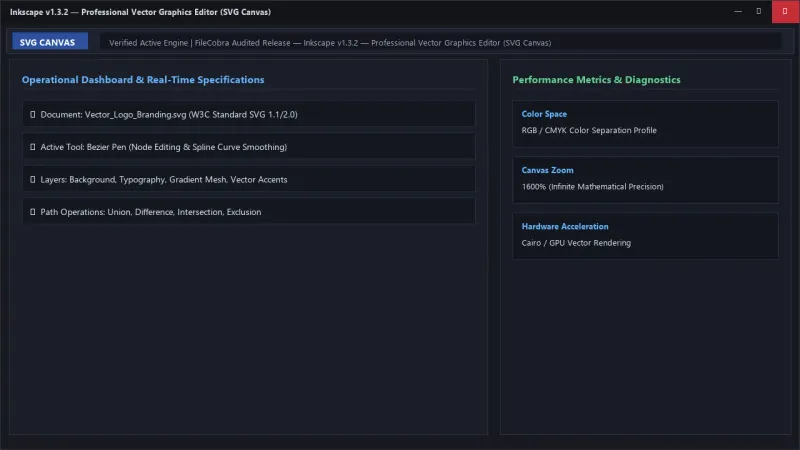
How to Install & Verify Inkscape
Download inkscape-1.3.2-x64.exe directly.
Run setup and start designing scalable SVG vectors.
Related Windows PC Software & Alternatives





Frequently Asked Questions & Verification Guide
Can Inkscape open and edit Adobe Illustrator (.AI) and PDF files?
Yes! Inkscape natively opens and imports Adobe Illustrator (.ai), PDF, and CorelDRAW (.cdr) files, converting embedded vector paths, gradients, and text into fully editable SVG elements.
Is Inkscape suitable for commercial graphic design and printing?
Yes! Inkscape is widely used by professional illustrators, logo designers, and commercial print shops worldwide. It supports CMYK color profiles, vector font rendering, and high-resolution PDF/X export for offset printing.
How do I vectorize a raster logo in Inkscape?
Select your imported PNG or JPEG image on the canvas, navigate to Path > Trace Bitmap (or press Alt+Shift+B), select your preferred threshold and scan mode, and click Apply to instantly generate clean vector paths.