
Troubleshooting
How to Verify a SHA-256 Checksum on Windows, Mac, Linux and Android
By Rehman Ahmad · Updated 2026-08-31 · 8 min read · 1814 words
Short answer
On Windows run Get-FileHash yourfile.exe in PowerShell, or certutil -hashfile yourfile.exe SHA256 in Command Prompt. On macOS and Linux use shasum -a 256 or sha256sum. Compare the result to the publisher's value programmatically rather than by eye. A match proves the file is byte-identical to what that publisher released.
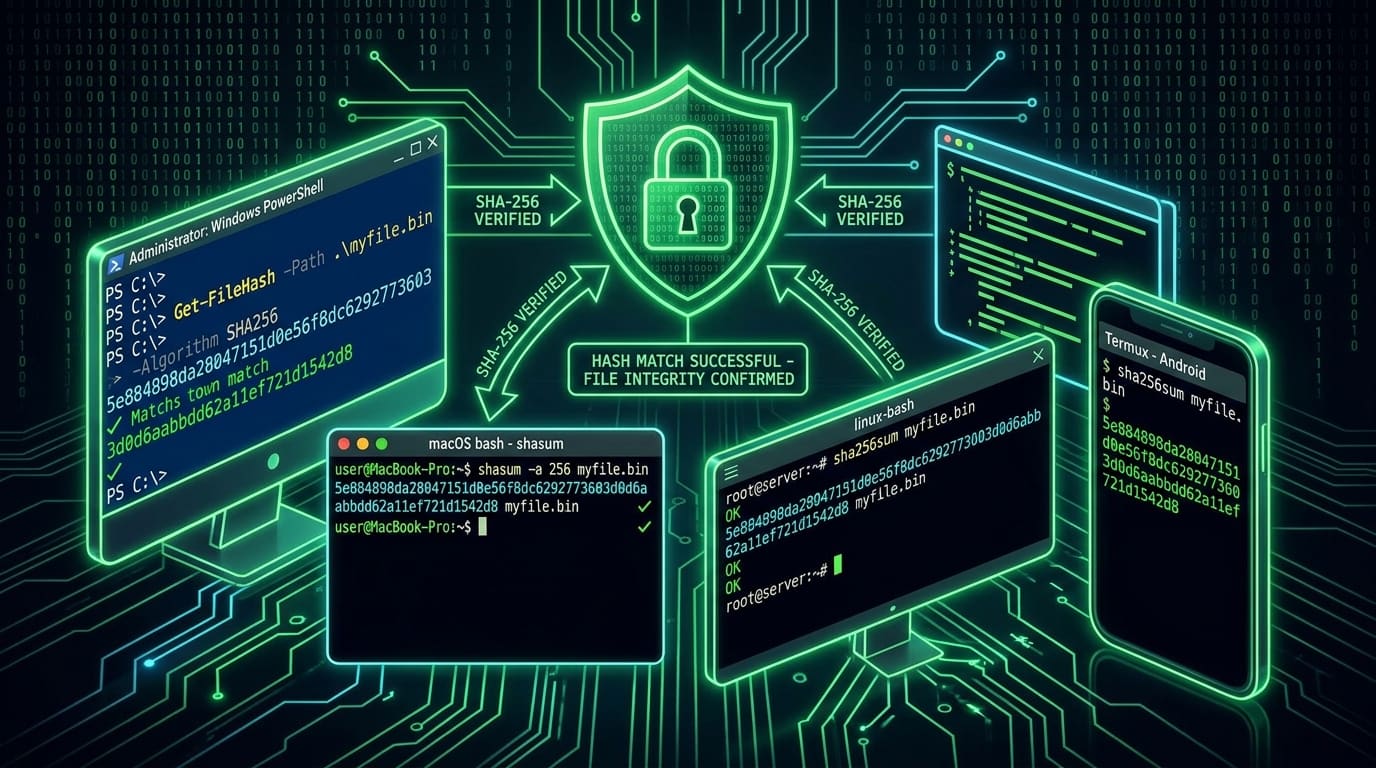
A checksum is the cheapest security check available to you. One command, two seconds, and you know whether the file on your disk is the file the developer built — or something a bad mirror, an unstable connection or an intercepting proxy handed you instead.
Almost nobody does it, and the main reason is that the tutorials make it sound like a chore. It is one line. Here is that line on every platform, plus the two things about checksums that the tutorials leave out.
The idea, in one paragraph
A cryptographic hash function reads a file and produces a fixed-length fingerprint — for SHA-256, 64 hexadecimal characters. Change one bit anywhere in the file and the fingerprint changes completely and unpredictably. Nobody can work backwards from a fingerprint to a file, and nobody can practically construct a different file with the same SHA-256 fingerprint. So if the developer publishes the fingerprint of what they built, and your copy produces the same fingerprint, your copy is their file.
That is the whole mechanism. Everything below is operating it.
Windows
PowerShell — the one to use. Open the folder, Shift-right-click in it, choose "Open in Terminal" or "Open PowerShell window here", then:
Get-FileHash yourfile.exe
SHA-256 is the default, so there is no flag to remember. To be explicit, Get-FileHash -Algorithm SHA256 yourfile.exe does the same thing.
Command Prompt — if you are somewhere PowerShell is not available:
certutil -hashfile yourfile.exe SHA256
certutil prints the hash in lowercase with spaces between byte pairs in some Windows versions, which makes it slightly more annoying to compare. Prefer Get-FileHash.
Neither requires installing anything. Both have shipped with Windows for over a decade.
macOS and Linux
macOS: shasum -a 256 yourfile.dmg
Linux: sha256sum yourfile.tar.gz
Both print the hash followed by the filename. On Linux, if the project publishes a SHA256SUMS file, sha256sum -c SHA256SUMS checks every file listed in it at once and prints OK or FAILED per file — which is the best version of this whole process and the reason Linux users find the Windows experience primitive.
Do not compare them by eye
This is the part that actually matters, and every tutorial gets it wrong by ending at "compare the two values".
Nobody compares 64 hexadecimal characters. What people do is check the first four, check the last four, and assume the middle. An attacker who can substitute a file can trivially arrange for the first and last few characters to be irrelevant, because you are not going to read them all — and a genuinely corrupted download will often differ only in the middle.
Make the computer do it. In PowerShell:
(Get-FileHash yourfile.exe).Hash -eq "PASTE_THE_PUBLISHED_VALUE_HERE"
It prints True or False. That is the entire check, it is case-insensitive, and it cannot be fooled by your eyes getting tired.
On macOS or Linux, the equivalent is to save the published hash and the filename into a text file and run shasum -a 256 -c thatfile or sha256sum -c thatfile.
> [!NOTE]
> If the published value has spaces in it, strip them before comparing. certutil output and some download pages both do this.
Android, which is genuinely harder
Android has no built-in way to hash a file, and this is the honest weak point of checksum advice on mobile. There are three routes and none of them is comfortable.
Best: hash it on a computer first. Download the APK on a PC, verify it there, then transfer it to the phone. This is the only route that catches a bad download before it is on the device.
On the phone: Termux. Install Termux, grant it storage access, and sha256sum works exactly as it does on Linux. Point it at the file, usually somewhere under /sdcard/Download/.
From a computer over ADB: with USB debugging enabled, adb shell sha256sum /sdcard/Download/yourfile.apk hashes the file in place without moving it. Useful for something already sideloaded.
There is a second check specific to APKs that is arguably better than a hash: verifying the signing certificate. Every APK is signed, and apksigner verify --print-certs yourfile.apk from the Android SDK build tools prints the certificate fingerprint, which you can compare against the developer's published fingerprint. When it works, this is stronger than a file hash — it confirms the developer's key signed this build, and it keeps working across versions.
The catch is that most developers never publish their certificate fingerprint anywhere, so you have nothing to compare against. The hash remains the practical option. If you are sideloading a bundle rather than a plain APK, our guide to installing an XAPK covers the format's own trust problem.
What a match proves, and what it does not
It proves the file on your disk is byte-identical to the file the publisher of that hash was describing. That rules out a truncated download, a corrupted transfer, and a mirror that injected adware into the installer — which is a real and common category of harm, not a theoretical one.
It does not prove the software is safe. A verified copy of a malicious program is still malicious. The hash speaks to integrity, not intent.
And here is the limit that matters most. If the hash and the download come from the same server, then anyone who can replace the download can replace the hash. The check still catches transport problems and bad mirrors, but it offers nothing against a compromised origin.
That is not hypothetical. Between 2020 and 2022 the Free Download Manager project's own website served a malicious Linux package to some visitors — a well-regarded open-source project, on its own domain, with a good reputation, distributing something it should not have. Our comparison of IDM and FDM covers the incident and its scope. The lesson is not that FDM is untrustworthy today. It is that reputation and verification are different things, and only one of them is a check you can perform.
A hash published somewhere other than the download server — a signed release note, a git tag, a package manager's own manifest, a project's mailing list — is meaningfully stronger. Most of the time you will not get one, and the same-server hash is still worth checking.
MD5 is not a substitute
Some of the packages in this catalogue publish an MD5 alongside their SHA-256. Use the SHA-256.
MD5 is fine at what it was originally for: detecting accidental corruption. It is broken for the security case, because producing two different files with the same MD5 is now cheap. A matching MD5 tells you the download did not get mangled. It does not tell you nobody constructed a substitute on purpose.
If a page offers only an MD5, treat it as a corruption check and get your assurance from somewhere else.
When no hash is published
Being straightforward about the numbers here: 320 of the 364 apps in this catalogue publish a SHA-256. That hash is computed from the exact file our ingestion worker downloaded, so it describes the copy you receive rather than a value copied off an upstream page. That leaves 44 apps with no hash at all — and for those, everything below is what you do instead.
That ratio is not typical. Out on the wider web most download pages give you nothing to check, so treat this ladder as the normal case in the wild even though it is the exception here.
So here is the fallback ladder, best first.
Download from the developer's own domain. This does more for you than any subsequent check. A mirror adds a party who can modify the file; the developer's site does not.
Check the digital signature on Windows. Right-click the file → Properties → Digital Signatures. If there is a valid signature, the publisher name in it is a cryptographic claim about who built the file, and it is stronger than a hash from the same page. If the tab is absent, the file is unsigned — normal for a repackaged installer, and covered in our guide to SmartScreen warnings.
Compare the file size against what the download page states. Crude, instant, and it catches truncation.
Upload it to VirusTotal. Sixty-odd engines is weak evidence on its own — new malware routinely scores zero — but the report also shows you the file's SHA-256 and, more usefully, whether anyone has ever submitted this file before. A popular program whose installer VirusTotal has never seen is a genuine signal.
Download it twice, from two networks, and compare your own hashes. If both copies produce the same fingerprint, you at least know you are getting consistently the same file, which rules out an opportunistic per-download modification.
Where the hash lives on this site
The hash is shown when you start a download, in the download dialog, alongside a copy button and the ready-made sha256sum or Get-FileHash command for that file. It is not reproduced in this article, deliberately — a hash printed in a guide goes stale the moment the app updates, and a stale hash is worse than no hash, because a mismatch sends you hunting for an attack that never happened.
If the dialog shows no hash, that app is one of the 46 without one. That is not an error and nothing is being withheld: we have not computed a hash for that build, so the ladder above is what to use instead.
Any of these make a reasonable first run at the commands above, spanning both platforms and a wide range of file sizes:
| App | Platform | Version |
|---|---|---|
| AntennaPod | Android | v3.4.1 |
| Tachiyomi | Android | v0.15.3 |
| Pocket Casts | Android | v7.65 |
| Musicolet | Android | v7.2.1 |
| SoundCloud | Android | v2026.08.20 |
| RePen | Windows | v1.0.0 |
| Lively Wallpaper | Windows | v2.2.1.0 |
| CapCut for PC | Windows | v4.8.0 |
A 10 MB APK and a 200 MB installer are worth trying back to back: the command is identical, and the only thing that changes is how long you wait. Each page shows the current size, which moves with every release.
The thirty-second habit
Download the file. Open PowerShell in the folder. Paste the published hash into the -eq comparison above. Read True.
That is it. It costs half a minute on the downloads where a hash exists, it catches the failure modes that actually happen to people, and it is the difference between trusting a download and knowing what it is.
Where no hash exists, spend the same thirty seconds on the developer's domain and the Digital Signatures tab. The point was never the command. It was declining to run an unknown binary on the strength of a filename.
Every app named here resolves to a page in the FileCobra catalogue — the build fails if one does not. Versions, package sizes and system requirements are read from that catalogue rather than written by hand. Where our ingestion worker has fetched a release itself, it records a SHA-256 of the exact file we serve and publishes it on the app’s page. We do not run an antivirus lab: where a VirusTotal report exists we link it, and where none exists we say so rather than imply one.
Rehman Ahmad
VERIFIED AUTHORChief Technology Officer & Lead Systems Auditor at FileCobra
Rehman specializes in Android operating system internals, cryptographic integrity verification, reverse engineering APK packaging architectures, and high-performance audio/video DSP pipelines. He directs the security verification and release ingestion infrastructure across FileCobra.
Apps covered in this guide
-
Lively Wallpaper
v2.2.1.0 · 207.96 MB · Open Source
-
RePen
1.0.0 · 97.57 MB · Open Source
-
CapCut
4.8.0 · 2.75 MB · Freeware
-
AntennaPod
3.12.0 · 16.88 MB · Open Source
-
Tachiyomi
v0.15.3 · 21.9 MB · Open Source
-
Musicolet
v7.2.1 · 36.5 MB · Freeware
-
Pocket Casts
v7.65 · 24.0 MB · Freeware
-
SoundCloud
v2026.08.20 · 43.8 MB · Freeware
Frequently asked questions
What is the fastest way to get a file's SHA-256 on Windows?
Open PowerShell in the folder and run Get-FileHash followed by the filename. It uses SHA-256 by default, so no algorithm flag is needed. If you are in Command Prompt instead, certutil -hashfile followed by the filename and SHA256 does the same job. Both are built into Windows with nothing to install.
What does a matching checksum actually prove?
That your copy is byte-for-byte identical to the file whoever published that hash was describing. It proves the download was not truncated, corrupted or altered in transit. It does not prove the software is safe, and it does not help if the same server that gave you the file also gave you the hash and both were replaced together.
How do I verify an APK checksum on Android?
The practical answer is to hash it on a computer before you transfer it. On the phone itself you need Termux, where sha256sum works as it does on Linux, or a computer with ADB, where adb shell sha256sum pointed at the file path in your Download folder will do it. There is no built-in way in the Android UI.
Is MD5 good enough?
For catching a corrupted download, yes. As a security check, no — MD5 collisions are cheap to produce, so a matching MD5 does not establish that nobody crafted a different file with the same value. If a page lists both, use the SHA-256 and ignore the MD5.
What if the download page does not publish a hash?
Out on the wider web, most pages do not. In this catalogue 320 of the 364 apps do publish a SHA-256, so the missing case is the exception here — 44 apps. When there is no hash, fall back to the developer's own domain rather than a mirror, compare the file size against what the page states, check the Authenticode signature in the file's Properties on Windows, and upload it to VirusTotal, which computes the hash for you as a side effect.