
Troubleshooting
"Windows Protected Your PC": What SmartScreen Checks and How to Proceed Safely
By Rehman Ahmad · Updated 2026-08-31 · 7 min read · 1542 words
Short answer
SmartScreen is a reputation check, not a malware scan. It warns because Microsoft's service has not seen that exact file often enough yet, which happens to every new build and to every repackaged installer. Verify the publisher and the SHA-256 hash, then use More info and Run anyway, or clear the file's Unblock checkbox.
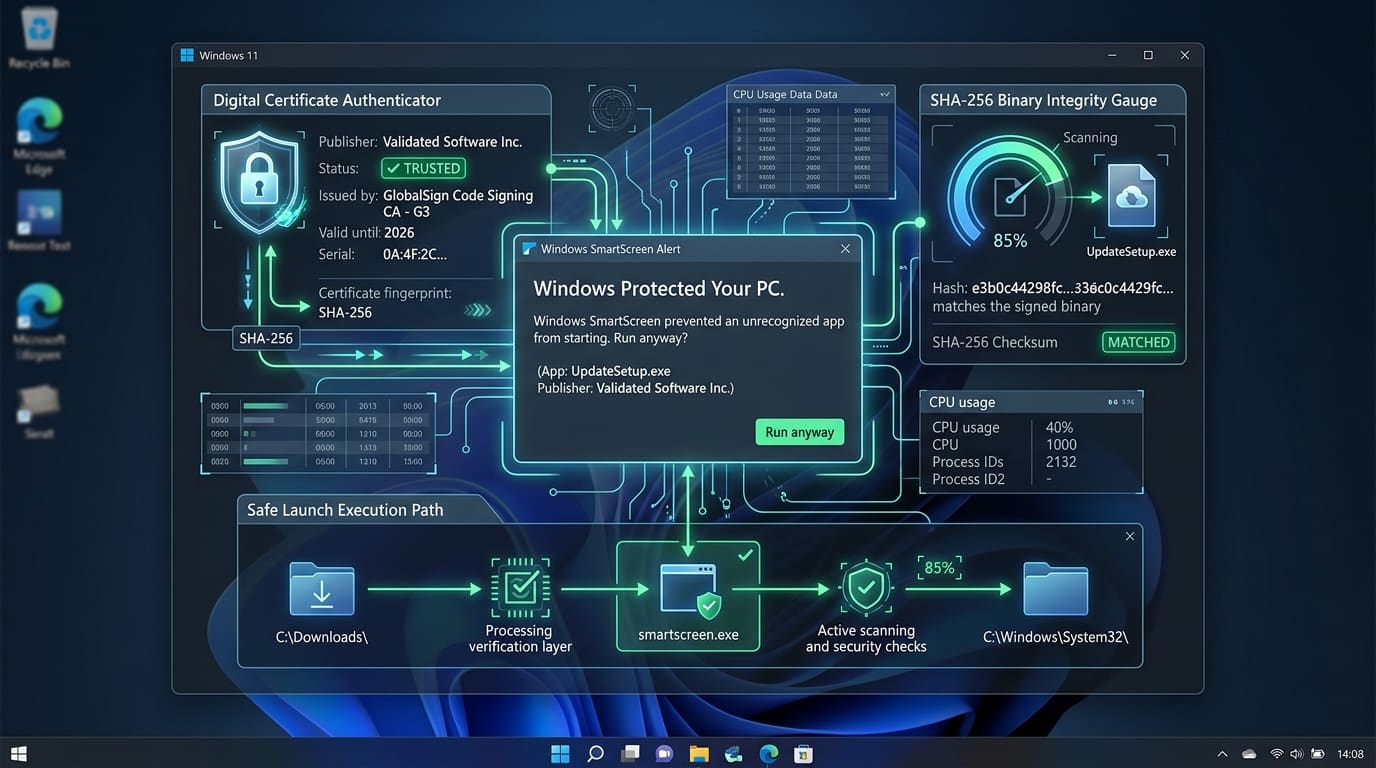
You download an installer from a company you have heard of, double-click it, and Windows says:
"Windows protected your PC. Microsoft Defender SmartScreen prevented an unrecognised app from starting. Running this app might put your PC at risk."
The wording is doing a lot of work there, and most of it is misleading. SmartScreen has not detected anything. It has not scanned the file for malware. What it has done is ask Microsoft whether many other people have run this exact file, and been told no.
That distinction is the whole article. Once you understand it, you can tell the difference between a warning worth ignoring and one worth heeding — which is a judgement no dialog box will make for you.
What SmartScreen actually checks
When you download an executable, Windows attaches a small marker to it recording that it came from the internet — the Mark of the Web, stored as an alternate data stream on the file. On first run, SmartScreen sees that marker and performs a reputation lookup: it sends a hash of the file, and metadata about its digital signature, to a Microsoft service.
The service answers with something close to "how familiar is this?" There are three inputs.
The file itself. Reputation attaches to an exact hash. Change one byte and it is a new file with no history.
The code-signing certificate. A publisher who signs their builds accrues reputation on the certificate, so their new releases inherit some standing. This is the mechanism that lets a large software company ship a new version without every user seeing this dialog.
Volume and time. Enough downloads, over enough days, without incident, and a file becomes familiar.
Nothing in that list is an analysis of what the program does. SmartScreen is a popularity check with a security-flavoured error message.
Why it fires on legitimate software
Five reasons, in rough order of how often they are the actual cause.
1. The build is new
A version released this week has no accrued reputation. Nothing is wrong. Everyone downloading it early sees this dialog, and in a fortnight nobody will.
2. The installer has been repackaged
This is the one that matters most on a site like this, and it deserves saying plainly rather than hiding.
A repackaged installer — the "EXE Repack" file type — is the vendor's software rewrapped by someone else, usually to strip bundled offers or to produce an offline installer. Rewrapping changes the file, which means the hash changes, which means all reputation the vendor's original binary had earned is gone. Worse, it usually breaks the Authenticode signature, because you cannot re-sign someone else's binary with their private key.
Every one of the eight apps below is listed as an EXE Repack:
- Bitdefender Antivirus Free
- CCleaner
- Postman
- Foxit PDF Reader
- Kaspersky Free
- WPS Office
- PDF24 Creator
- BlueStacks 10
Each page carries the current version and download size; both change when the vendor ships an update, so they are not reproduced here.
That is a straightforward explanation of why SmartScreen questions them. It is also a reason to be more careful with repacks than with a vendor's own signed installer, not less. If a signed original is available from the developer, prefer it — you lose nothing and you gain a verifiable publisher.
3. The publisher changed or renewed their certificate
Certificates expire. When a developer rotates to a new one, reputation does not fully transfer, and their next release trips the dialog even though nothing about the company changed.
4. The developer is small
An independent developer with a few thousand downloads a year may never accumulate enough volume to clear the threshold. Their software is not worse. It is just less popular, and SmartScreen cannot tell the difference.
5. The download is genuinely bad
It does happen. This is why the next section exists.
What to check before you click Run anyway
Do not treat "More info → Run anyway" as step one. It takes about ninety seconds to establish whether the warning is noise, and the sequence is the same every time.
Check the publisher line in the dialog. Click "More info" and read what it says. A real publisher name means the file is signed and the signature validates — that is meaningful. "Unknown publisher" means it is unsigned or the signature is broken, which is normal for a repack and abnormal for a major vendor's own installer.
Check where you got it. The developer's own domain is the standard. A link from an email, a search advert, or a mirror you have not heard of is not, and no amount of dialog-reading compensates for that.
Check the hash if one is published. This is the only step that gives you certainty rather than confidence. Compare the file's SHA-256 against the value the developer publishes — our guide to verifying a SHA-256 checksum covers the two commands you need. If they match, the file is byte-for-byte what the developer released and SmartScreen is simply unfamiliar with it.
Check the file size against the download page. A crude test that catches truncated and substituted downloads in five seconds.
If those four line up, the warning is noise. Proceed.
Three ways to proceed
Route 1 — Through the dialog
Click More info, then Run anyway. This applies to this one launch of this one file, and it is the right choice for something you are installing once.
If you do not see "Run anyway", you are looking at a different dialog — see the section below on telling them apart.
Route 2 — Unblock the file first (cleaner)
Right-click the file → Properties → at the bottom of the General tab, tick Unblock → Apply.
This removes the Mark of the Web, so Windows no longer treats the file as internet-sourced and SmartScreen never runs on it. It is a better habit than the dialog route because you do it deliberately, on a file you have already verified, rather than under pressure from a warning.
Route 3 — PowerShell
Unblock-File -Path .\installer.exe does the same thing as Route 2 and can be pointed at a folder.
Useful when you have downloaded several files, and useful in a script — but note that being able to unblock in bulk is exactly the kind of convenience worth applying carefully. Unblock what you have verified, not everything in Downloads.
What not to do
Do not disable SmartScreen. Windows Security → App & browser control → Reputation-based protection has a switch for it. Turning that off to install one program is a permanent trade for a temporary convenience, and it stays off, because nobody sets a calendar reminder to re-enable a security feature. The two clicks in Route 1 cost less.
Do not add sweeping antivirus exclusions. Excluding your whole Downloads folder to stop the interruptions is the same mistake with a bigger blast radius.
Do not assume the warning means the file is fine either. SmartScreen is unreliable in both directions. It questions safe files constantly and it does not catch everything. Your verification, not the dialog, is what should decide.
Telling the warnings apart
Windows has four dialogs that people all describe as "Windows blocked my download". They mean different things and only one of them is SmartScreen.
| What you see | What it is | What to do |
|---|---|---|
| Blue, "Windows protected your PC", has a More info link | SmartScreen reputation warning | Verify, then Run anyway |
| Red, Windows Security, names a threat | Microsoft Defender found a detection | Do not run it. Investigate the source |
| Blue, "Do you want to allow this app to make changes" | UAC asking for admin rights | Normal for any installer |
| "The publisher could not be verified" | Unsigned file, older wording | Same checks as SmartScreen |
The second row is the one to take seriously. A named detection is an actual verdict about the contents of the file, not a statement about its popularity.
The one case where you should stop
If the publisher line says Unknown on an antivirus installer, stop.
Bitdefender and Kaspersky both sign their genuine installers — signing is table stakes for a security vendor, and a security product that cannot prove who built it has no business asking for the access it needs. An unsigned antivirus setup file is the single highest-value target for substitution attacks on Windows, because it asks for kernel-level access and users grant it without hesitation.
The same reasoning applies to anything that runs with elevated privileges: system utilities, drivers, disk tools, anything from a bank. For these, go to the vendor's own site, download their own signed installer, and let SmartScreen warn you about the new version if it wants to. That warning is cheap. The alternative is not.
For everything else — a PDF reader, an office suite, an emulator — verify the source, check a hash if there is one, click Run anyway, and get on with your day.
Every app named here resolves to a page in the FileCobra catalogue — the build fails if one does not. Versions, package sizes and system requirements are read from that catalogue rather than written by hand. Where our ingestion worker has fetched a release itself, it records a SHA-256 of the exact file we serve and publishes it on the app’s page. We do not run an antivirus lab: where a VirusTotal report exists we link it, and where none exists we say so rather than imply one.
Rehman Ahmad
VERIFIED AUTHORChief Technology Officer & Lead Systems Auditor at FileCobra
Rehman specializes in Android operating system internals, cryptographic integrity verification, reverse engineering APK packaging architectures, and high-performance audio/video DSP pipelines. He directs the security verification and release ingestion infrastructure across FileCobra.
Apps covered in this guide
-
Foxit PDF Reader
2026.2.1.39815 · 350.94 MB · Freeware
-
WPS Office
12.2.0.17500 · 210 MB · Freeware
-
Bitdefender Antivirus Free
27.0.42.180 · 21.49 MB · Freeware
-
Kaspersky Free
21.19.7.527 · 185 MB · Freeware
-
PDF24 Creator
11.20.1 · 342.2 MB · Freeware
-
BlueStacks 10
10.42.255.1002 · 1.18 MB · Freeware
-
CCleaner
7.11.1509.1940 · 1.67 MB · Freeware
-
Postman Desktop
11.20.0 · 168.69 MB · Freeware
Frequently asked questions
Does "Windows protected your PC" mean the file has a virus?
No. That dialog is a reputation warning — Microsoft's service has not seen enough copies of that exact file to vouch for it. A malware detection is a different, red dialog from Windows Security that names a threat. SmartScreen firing means unfamiliar, not dangerous, and the two are easy to confuse because the wording is deliberately alarming.
Why does SmartScreen block software from big companies?
Because reputation attaches to a specific file, and a new version is a new file with no history. It also attaches to the code-signing certificate, so a publisher who renews or changes certificates starts partly over. And any installer that has been repackaged has a different hash from the vendor's original, which discards the reputation the original had earned.
How do I unblock a downloaded file permanently?
Right-click the file, choose Properties, and tick Unblock at the bottom of the General tab, then Apply. That removes the Mark of the Web — a small tag Windows attaches to anything from the internet — which is what triggers the check. The PowerShell equivalent is Unblock-File. Both are cleaner than clicking through the dialog.
Should I turn SmartScreen off?
No. It costs you two clicks on the handful of files it questions and it silently blocks a real category of attack the rest of the time. Turning it off in Windows Security is a permanent reduction in protection traded for a one-time convenience, and people who turn it off for one install never turn it back on.
When should I not click Run anyway?
When the publisher line reads Unknown on software that should certainly be signed — an antivirus installer, a banking tool, a system utility from a large company. When the file came from a link in an email or a search advert rather than the developer's own site. And whenever a published SHA-256 hash exists and yours does not match it.