

Download Telegram Desktop for Windows PC v7.3.3 for Windows PC
Telegram Desktop is the official, open-source Windows client for Telegram — instant sync with your phone, 2 GB file transfers, calls, folders, and multiple...
Technical Specifications & System Requirements
Software notes
Features
- Instant, reliable sync with the mobile app — every chat, channel, and draft is simply there when you sit down at the PC, with no re-pairing.
- Sends files up to 2 GB each with no compression forced on documents, making it a practical tool for moving large media between your own devices.
- Native performance: fast startup, smooth scrolling through enormous channel histories, and proper Windows notifications and tray behavior.
- Chat folders, saved messages, scheduled sends, and support for multiple accounts cover power-user organization without third-party hacks.
- Open-source client (GPLv3) with no ads in chats and no premium tier gating basic messaging features, funded instead by optional Telegram Premium extras.
Considerations
- Secret chats with end-to-end encryption are mobile-only; desktop cloud chats rely on Telegram's server-side encryption model instead.
- Registration requires a phone number, which users seeking fully anonymous sign-up will not accept.
- The feature surface is large and settings are spread across several panels, so first-time users can miss useful options like folders and auto-download limits.
About & Overview: Telegram Desktop for Windows PC
Telegram Desktop is the official Windows client for the Telegram messenger, built by the Telegram team and released as open source. It syncs chats, groups, and channels instantly with your phone, sends files up to 2 GB each, and supports voice and video calls, message scheduling, folders, multiple accounts, and an unlimited cloud draft that follows you between devices. Because it is a native application rather than a web wrapper, it starts fast, handles huge channel histories smoothly, and supports keyboard shortcuts and system notifications properly. This page covers the Windows desktop client; the separate Telegram Android app has its own catalog entry.
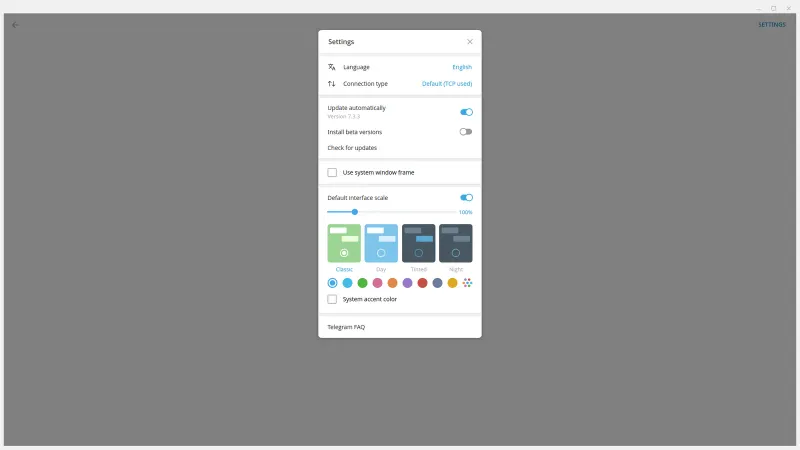
Telegram Desktop for Windows PC UI & Interface Screenshots
How to Install & Verify Telegram Desktop for Windows PC
Download Telegram Desktop from the official vendor link on this page.
Open the downloaded file and follow the installation steps.
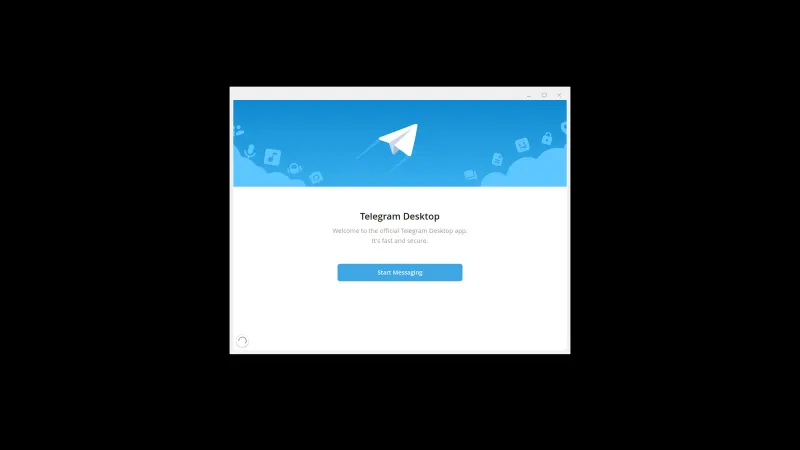
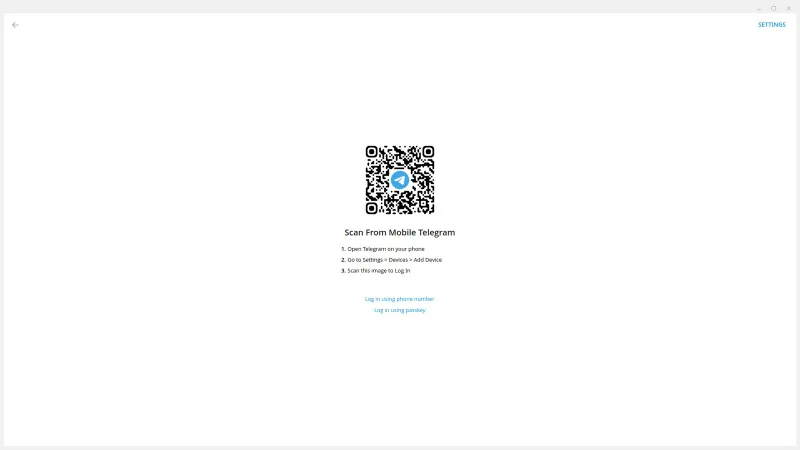
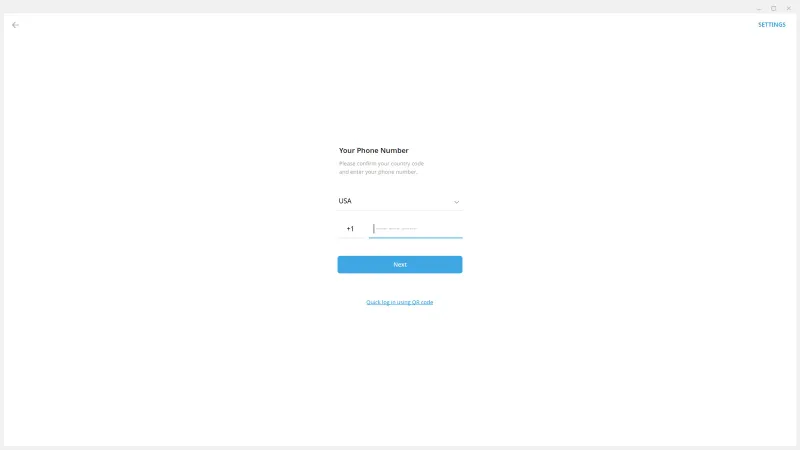
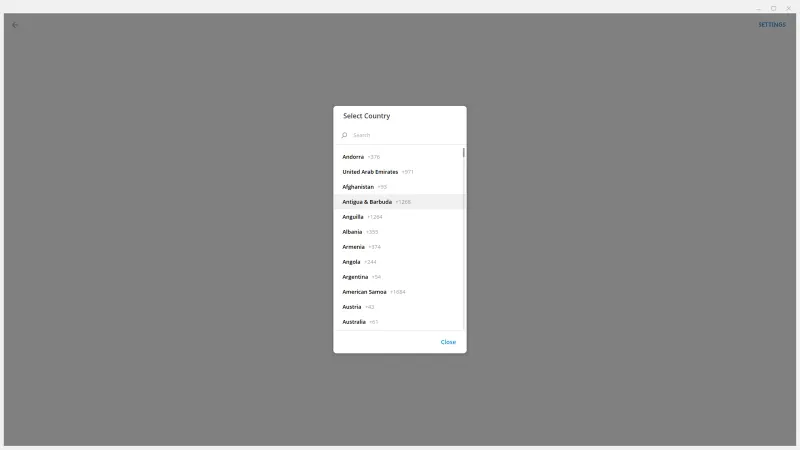
Launch Telegram and sign in with your phone number, confirming in the mobile app.
Related Windows PC Software & Alternatives






Frequently Asked Questions & Verification Guide
Is Telegram Desktop free?
Yes. The official desktop client is free and open source. An optional Telegram Premium subscription adds extras like higher limits, but core messaging, calls, and file sharing are free.
Is this the same as the Telegram Android app in the catalog?
No — this is the native Windows desktop client. The catalog also lists the Telegram Android app separately; both sign in to the same account and sync with each other.
Does Telegram Desktop work without my phone nearby?
Yes. After the first sign-in (confirmed via the mobile app or SMS), the desktop client works independently — your phone does not need to be online or nearby.
Can I use multiple Telegram accounts on desktop?
Yes. The client supports signing in with up to three accounts in the standard build and switching between them from the side menu.
Does Telegram Desktop support video calls?
Yes, it supports one-to-one voice and video calls, and group voice chats, directly from the Windows client.