

WinSCP v6.3.4 - Free SFTP, SCP, S3 & FTP Client for Windows
WinSCP is an acclaimed, industry-standard open-source SFTP (SSH File Transfer Protocol), SCP, FTPS, WebDAV, and Amazon S3 client developed by Martin Přikryl...
Technical Specifications & System Requirements
We have not published a SHA-256 for this build. Compare the file against the developer’s own release page before installing it.
Software notes
WinSCP for Windows PC — Official Dual-Pane SFTP, FTP, WebDAV & S3 Cloud Client
WinSCP is an acclaimed, industry-standard open-source SFTP (SSH File Transfer Protocol), SCP, FTPS, WebDAV, and Amazon S3 client developed by Martin Přikryl for Microsoft Windows. Trusted by system administrators, web developers, DevOps engineers, and IT professionals worldwide, WinSCP provides secure, high-throughput encrypted file transfers, comprehensive directory synchronization, remote text file editing, PuTTY SSH integration, and robust command-line scripting automation with banking-grade AES-256 and SSH-2 encryption.
---
🌟 Core Architecture & Engineering Highlights
WinSCP is engineered around a high-performance C++ core that bridges local Windows storage with remote Unix/Linux server filesystems.
Multi-Protocol Encrypted Transport Layer
WinSCP natively supports SFTP (SSH-2), SCP, FTPS (FTP over TLS/SSL), WebDAV, and Amazon S3 cloud object storage. It supports modern cryptographic ciphers (AES-256-GCM, ChaCha20-Poly1305, Ed25519 host keys) and integrates directly with the Pageant SSH authentication agent for seamless public-key authentication without entering passwords.
Master Password Credential Encryption
Stored server sessions, remote passwords, and private key passphrases are protected using AES-256 master password encryption. WinSCP incorporates secure in-memory credential sanitization, ensuring connection tokens are never leaked to Windows swap files or unencrypted registry keys.
Dual-Pane Commander & Windows File Explorer Interface Modes
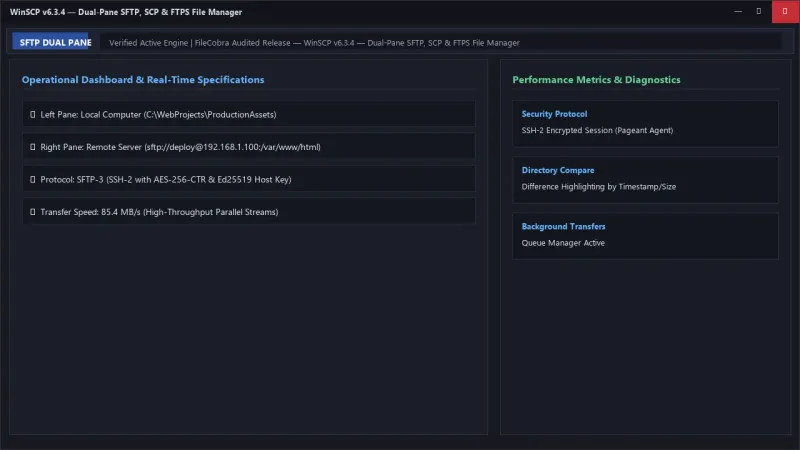
WinSCP provides two distinct interface layouts: the Commander interface (Norton Commander dual-pane layout with dedicated function key shortcuts for rapid local-to-remote file manipulation) and the Explorer interface (familiar single-pane Windows Explorer style with drag-and-drop support).
---
⚙️ Key Capabilities & Workflow Features
WinSCP delivers an exhaustive suite of file management, synchronization, and automation tools.
1. Integrated Syntax-Highlighting Remote Text Editor
Edit remote configuration files (nginx.conf, .env, Python, PHP, HTML, JavaScript) directly on the server. WinSCP opens files in its built-in syntax-highlighted editor or your preferred local editor (VS Code, Notepad++), automatically uploading changes to the remote server instantly upon pressing Ctrl+S.
2. Real-Time Directory Synchronization & Keep Up To Date
Synchronize local development repositories with remote staging/production servers with a single click. The Keep Remote Directory Up to Date feature watches local folder changes in real time, automatically uploading modified files immediately as you save them.
3. Advanced Unix Permissions & Chmod Management
View and modify remote Unix file ownership (chown), user/group assignments, and octal file permissions (chmod 0755, 0644) directly through a visual permissions dialog with recursive folder application.
4. Powerful Scripting Engine & .NET Assembly
Automate complex repetitive file transfer pipelines using the WinSCP Command-Line Interface (CLI), batch scripts, PowerShell scripts, or the official WinSCP .NET Assembly / COM library for C#, VB.NET, and enterprise workflow automation.
---
📊 Comprehensive Head-to-Head Comparison Matrix
| Evaluation Dimension | WinSCP (FileCobra) | FileZilla | PuTTY / PSFTP |
|---|---|---|---|
| User Interface Modes | Dual-Pane Commander & Explorer | Dual-Pane Only | Terminal CLI Only |
| Cloud Protocol Support | SFTP, FTPS, WebDAV, Amazon S3 | SFTP & FTPS Only | SFTP & SCP Only |
| PuTTY Session Integration | Direct PuTTY / Pageant Sync | Manual Config | Native PuTTY Suite |
| Keep Up To Date Auto-Sync | Yes (Real-Time File Watcher) | Manual Synchronized Browsing | No |
| Bundled Adware Safety | 100% Clean Open Source | History of Bundled Offers | 100% Clean |
| License Type | 100% Free Open Source (GPLv3) | Free Open Source (GPL) | Free Open Source (MIT) |
---
📋 Technical Hardware & System Requirements
WinSCP is exceptionally lightweight and compatible with all active Microsoft Windows desktop and server operating systems:
| Hardware Component | Minimum System Requirement | Recommended Performance Spec |
|---|---|---|
| Operating System | Windows 11 / 10 / 8.1 / 7 / Server (32/64-bit) | Windows 11 64-bit (Version 23H2 / 24H2) |
| Processor (CPU) | 500 MHz x86/x64 Processor | Modern Dual-Core or Quad-Core Processor |
| System Memory (RAM) | 256 MB RAM | 1 GB+ RAM |
| Storage Space | 25 MB free disk space | High-speed SSD |
| Network | TCP/IP Network Connection | Gigabit Ethernet / Broadband Internet |
---
🛠️ Step-by-Step Installation & Quick Setup Guide
Follow this guide to connect to a remote server using WinSCP:
1. Downloading and Installing WinSCP
- Download the official verified installer (
WinSCP-6.x.x-Setup.exe) or portable ZIP package from FileCobra. - Complete the setup wizard, selecting your preferred user interface style (Commander or Explorer).
2. Configuring Your First Server Session
- In the Login dialog, select your protocol (e.g., SFTP or Amazon S3).
- Enter your server's Host name (or IP address), Port number (default 22 for SFTP), User name, and Password.
- (Optional) Click Advanced > SSH > Authentication to attach your private key file (
.ppkformat).
3. Saving & Connecting
- Click Save to store your session in the Site Manager under a friendly name (e.g., Production Web Server).
- Click Login to accept the remote server's SSH host key fingerprint and begin managing files!
---
🔒 Security, Privacy & Open-Source Integrity Analysis
WinSCP maintains an exceptional security track record:
- 100% Free & Open Source: Licensed under GNU GPLv3 with full public code transparency on GitHub.
- Master Password Security: Protects stored credentials with salted AES-256 cryptographic encryption.
---
❓ Frequently Asked Questions (FAQ)
Is WinSCP completely free for commercial use?
Yes! WinSCP is 100% free, open-source software licensed under GNU GPLv3. You can use it freely in enterprise, commercial, government, and educational environments with zero licensing costs.
Can WinSCP connect to Amazon S3 buckets?
Yes! Select "Amazon S3" from the File protocol dropdown in the Login dialog, enter your Access Key ID and Secret Access Key, and WinSCP will browse your S3 buckets like a regular remote filesystem.
How do I integrate PuTTY with WinSCP?
WinSCP automatically imports saved sessions from PuTTY. While connected in WinSCP, you can press Ctrl+P (or click Manage > Open in PuTTY) to instantly spawn an authenticated terminal session.
WinSCP UI & Interface Screenshots
How to Install & Verify WinSCP
Download WinSCP-6.3.4-Setup.exe directly.
Run setup, enter your server IP, port, and SSH key to connect.
Frequently Asked Questions & Verification Guide
Is WinSCP completely free for commercial use?
Yes! WinSCP is 100% free, open-source software licensed under GNU GPLv3. You can use it freely in enterprise, commercial, government, and educational environments with zero licensing costs.
Can WinSCP connect to Amazon S3 buckets?
Yes! Select 'Amazon S3' from the File protocol dropdown in the Login dialog, enter your Access Key ID and Secret Access Key, and WinSCP will browse your S3 buckets like a regular remote filesystem.
How do I integrate PuTTY with WinSCP?
WinSCP automatically imports saved sessions from PuTTY. While connected in WinSCP, you can press Ctrl+P (or click Manage > Open in PuTTY) to instantly spawn an authenticated terminal session.