

Download FFmpeg for Windows PC v9.0.2 for Windows PC
FFmpeg 9.0.2 is the free, open-source command-line multimedia engine — convert, compress, record and stream audio and video in almost any format.
Technical Specifications & System Requirements
Software notes
Features
- It converts, records, streams and inspects audio and video across hundreds of codecs and containers, from H.264 and HEVC to AV1, AAC, MP3 and Opus, all completely free and open source.
- Every operation is a single scriptable command, so conversions can be batched over whole folders and repeated exactly, which no click-driven converter matches.
- The package includes three tools — ffmpeg for processing, ffprobe for detailed media analysis and ffplay for quick playback — covering the full inspect-convert-check cycle.
- This Gyan essentials build is the Windows build linked from ffmpeg.org itself, giving you a trustworthy, versioned release without compiling source code.
- Filters and controls are exceptionally deep, including scaling, cropping, trimming, loudness normalisation, subtitle burn-in and hardware-accelerated encoding on supported GPUs.
Considerations
- There is no installer and no graphical interface: you must extract the ZIP yourself, add the bin folder to the Windows PATH manually, and run everything from a terminal.
- The command syntax and option surface are vast, so beginners face a genuine learning curve and cryptic errors when a flag or codec name is wrong.
- The essentials build leaves out some specialist libraries included in Gyan's larger full build, so unusual codecs or filters may require switching to that bigger package.
How FFmpeg for Windows PC Compares to Top Alternatives
HandBrake wraps video transcoding in a friendly window with presets and batch queues, while FFmpeg is the command-line engine class underneath this whole category — hundreds of codecs and filters, completely scriptable.
LosslessCut is a visual editor for trimming and merging clips losslessly in seconds, while FFmpeg re-encodes, filters, records, streams and inspects media from typed commands with far deeper control.
MKVToolNix only remuxes Matroska files — adding or removing audio and subtitle tracks without re-encoding — while FFmpeg converts between virtually all formats and can process the streams themselves.
About & Overview: FFmpeg for Windows PC
FFmpeg 9.0.2 is the free, open-source multimedia framework from the FFmpeg project: the command-line engine that converts, records, streams, filters and inspects audio and video in hundreds of formats,. This listing is the release essentials build for 64-bit Windows 10 and later compiled by Gyan — the Windows build provider linked from ffmpeg.org's own download page — containing three tools: ffmpeg for converting and processing, ffprobe for analysing media files, and ffplay for quick playback. The essentials build covers everyday work, including H.264 and HEVC encoding, AV1 decoding, AAC, MP3 and Opus audio, subtitles, scaling, trimming, loudness filters and hardware acceleration, in a smaller download than Gyan's full build. There is deliberately no installer and no graphical interface: FFmpeg ships as a ZIP archive that you extract yourself, and it becomes a normal Windows command once its bin folder is added to the PATH environment variable, as the install steps below explain. In return you get total scriptability: one typed command can convert a single file or, inside a loop, an entire archive.
In-Depth: FFmpeg for Windows PC
The plumbing of modern media
FFmpeg is not so much an application as the plumbing of modern media: if a program converts, streams or thumbnails video, there is a good chance FFmpeg is doing the work inside it. Used directly, it is unmatched in scope — it converts, records, streams, filters and inspects audio and video across hundreds of codecs and containers, with precise control over bitrate, resolution, audio channels, subtitles and metadata, and hardware encoding where your GPU supports it. Above all it is completely scriptable: one typed command can convert a single file or, inside a loop, an entire folder — a conversion you work out once can be replayed over ten thousand files unchanged, which no click-driven converter matches. FFmpeg 9.0.2 is free and open-source software from the FFmpeg project — and if you can live at the command line, nothing else free comes close to its reach or reliability.
Three tools, and choosing the right build
The package contains three tools covering the full inspect-convert-check cycle: ffmpeg for converting and processing, ffprobe for analysing media files in detail, and ffplay for quick playback. This listing is the release essentials build compiled by Gyan — the Windows build provider linked from ffmpeg.org's own download page — a known, signed-off source with the everyday codec set included and nothing to activate, ever. It bundles the libraries needed for everyday work: H.264 and HEVC encoding, AV1 decoding, AAC, MP3 and Opus audio, subtitles, scaling, trimming, loudness filters and hardware acceleration, in a smaller download than the full build. Choose the full build instead only when you need its longer list of specialist libraries: the essentials build omits some of those, so unusual codecs or filters may require switching to the bigger package.
No installer is the design
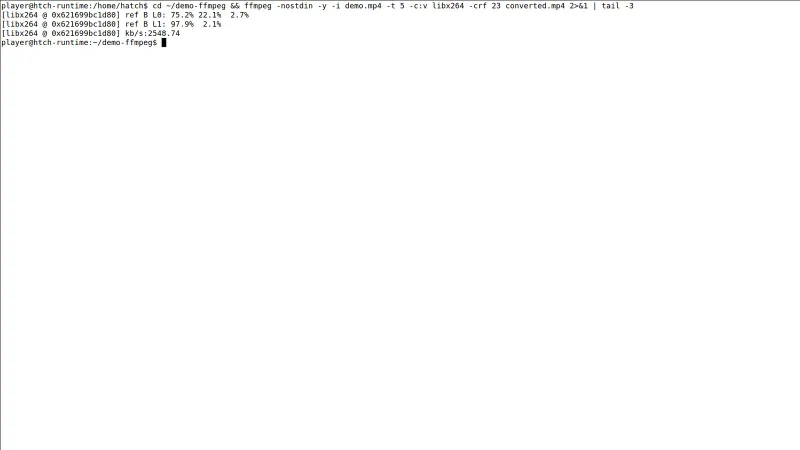
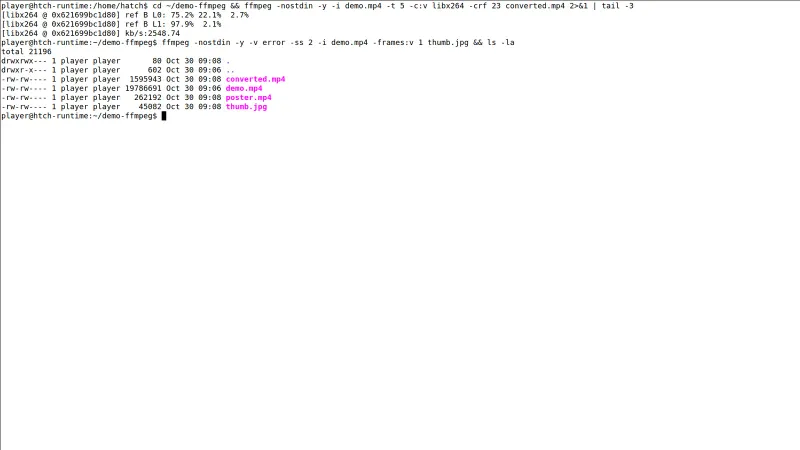
There is deliberately no installer and no graphical interface. FFmpeg ships as a ZIP archive: extract it to a folder such as C:\ffmpeg, add that folder's bin subfolder to the Windows PATH environment variable, then open a new terminal and it becomes a normal Windows command. That manual setup is the famous trade-off, along with a command syntax whose full option surface runs to thousands of entries; a simple conversion is one line, but error messages assume you will read them carefully, so beginners face a real learning curve and cryptic errors when a flag or codec name is wrong. In return you get total scriptability and a trustworthy, versioned release without compiling source code. It runs on 64-bit Windows 10 or later, with 2 GB of RAM and 400 MB of free space.
FFmpeg for Windows PC UI & Interface Screenshots
How to Install & Verify FFmpeg for Windows PC
Download the FFmpeg 9.0.2 essentials build (ZIP, about 109 MB) using the download button on this page, then right-click it in File Explorer and choose Extract All. Move the extracted folder to a permanent home such as C:\ffmpeg, and open it to confirm the bin subfolder contains ffmpeg.exe, ffprobe.exe and ffplay.exe — double-clicking an EXE setup wizard does not exist for FFmpeg, and none is needed.
Search Windows for 'Edit the environment variables for your account', open Environment Variables, select the Path variable under User variables and click Edit, then New, and add the full path to the bin folder, for example C:\ffmpeg\bin. Click OK on every dialog to save; this is the step that lets any terminal find FFmpeg by name.
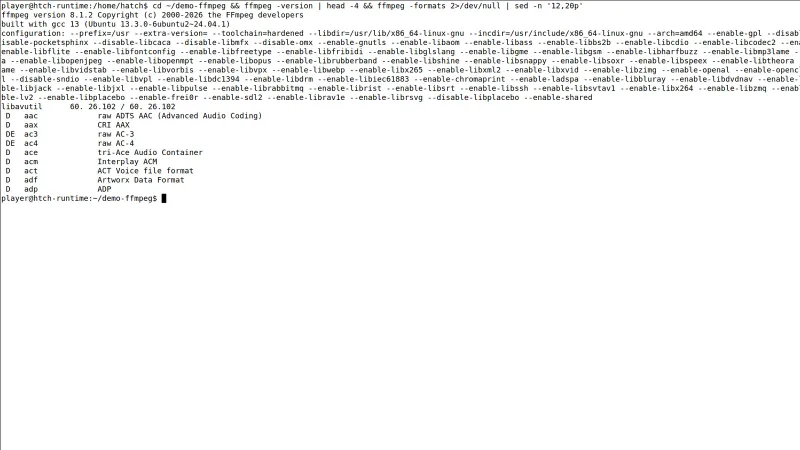
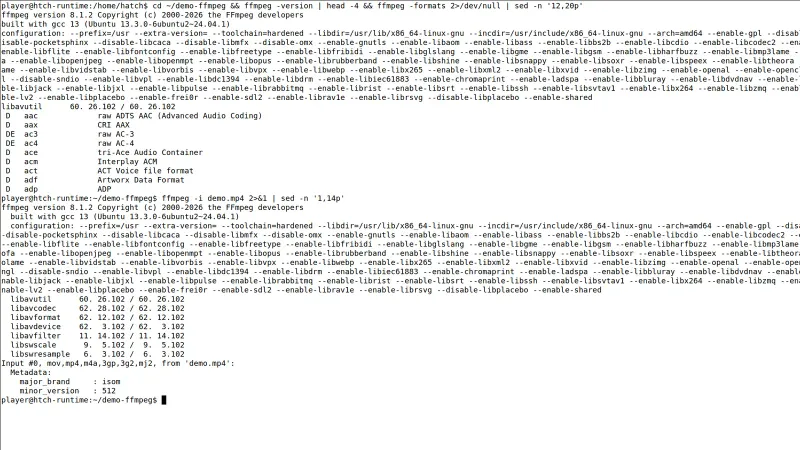
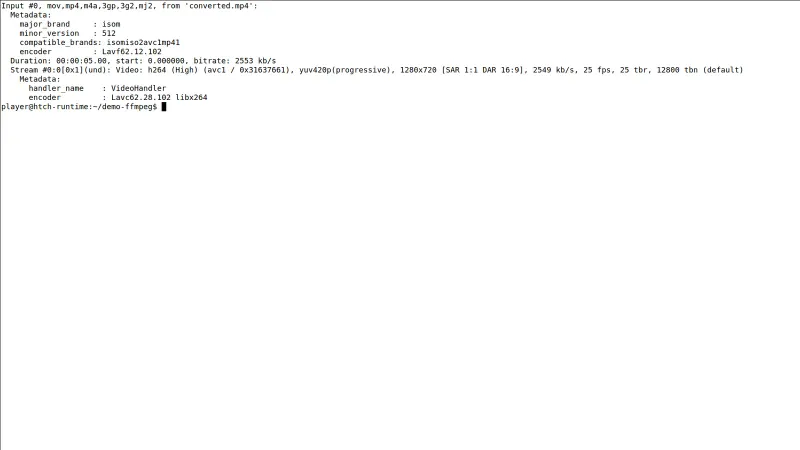
Close any open terminals, open a new Command Prompt or PowerShell window, and run: ffmpeg -version. If the PATH step worked, it prints the FFmpeg 9.0.2 version and build configuration; an old terminal window will not see the new PATH, which is the most common reason for a 'not recognized' error.
Related Windows PC Software & Alternatives





Frequently Asked Questions & Verification Guide
How do I install FFmpeg on Windows 11?
There is no installer, by design: FFmpeg for Windows ships as a ZIP from Gyan, the build provider linked from ffmpeg.org. Extract it to a folder such as C:\ffmpeg, add that folder's bin subfolder to your PATH environment variable, then open a new terminal and run ffmpeg -version to verify — the exact bin folder (for example C:\ffmpeg\bin), not the parent folder, is what must be on the PATH.
What is FFmpeg used for?
FFmpeg is the command-line engine that converts, records, streams, filters and inspects audio and video across hundreds of formats. The package includes three tools: ffmpeg for converting and processing, ffprobe for analysing media files in detail, and ffplay for quick playback — and because every operation is one scriptable command, a conversion can be repeated over an entire archive unchanged.
Is FFmpeg free to use?
Yes. FFmpeg is free and open-source software, and the Gyan essentials build of the 9.0.2 release offered here costs nothing, with nothing to activate. It covers everyday work including H.264 and HEVC encoding, AV1 decoding, AAC, MP3 and Opus audio, subtitles, scaling, trimming and loudness filters.
Can you run FFmpeg on Windows?
Yes — this listing is the release essentials build for 64-bit Windows 10 and later, compiled by Gyan, the Windows build provider linked from ffmpeg.org's own download page. There is deliberately no graphical interface and no setup wizard: you extract the ZIP, add the bin folder to your PATH, and run it from Command Prompt or PowerShell.
Which FFmpeg to get?
For most people, the Gyan essentials build offered here: it bundles the libraries needed for everyday work — H.264, HEVC, common audio codecs, popular filters — in a smaller download. Gyan's full build adds a longer list of specialist libraries and niche codec support, and the full-shared variant ships shared libraries for developers; you only need those if a specific unusual codec or filter is missing.