

VideoProc Converter AI v7.1 - 4K/8K AI Video Upscaling, Converter & Screen Recorder
VideoProc Converter AI for Windows is an advanced video processing, AI upscaling, and format conversion suite developed by Digiarty Software.
Technical Specifications & System Requirements
We have not published a SHA-256 for this build. Compare the file against the developer’s own release page before installing it.
Software notes
Features
- AI Super Resolution: Upscale low-res video & images up to 400% (4K/8K) with realistic detail.
- AI Frame Interpolation: Convert 24/30 FPS videos into ultra-smooth 60/120/240 FPS slow-motion optimized for Windows.
- Clean interface with direct high-speed download mirrors.
Considerations
- Advanced timeline and encoding settings have a modest learning curve.
VideoProc Converter AI for Windows — Official Verified Download & In-Depth Technical Architecture Guide
VideoProc Converter AI for Windows is an advanced video processing, AI upscaling, and format conversion suite developed by Digiarty Software. Powered by Level-3 Full GPU Acceleration, VideoProc utilizes neural networks to upscale low-resolution video to 4K, interpolate frame rates to 60/120 FPS, stabilize shaky camera footage, and compress 4K/8K media without quality loss. Engineered specifically for Windows environments, this release represents an authoritative benchmark in Video Editing & VFX, offering an optimal combination of processing efficiency, responsive user interaction, and robust background stability.
---
🌟 Core Architecture & Engineering Highlights
VideoProc Converter AI is built upon a high-performance, fault-tolerant engineering framework engineered to maximize hardware efficiency, minimize background resource utilization, and deliver rapid response times on modern Windows devices.
Level-3 Full GPU Hardware Acceleration Engine
Harnesses NVIDIA CUDA/NVENC, AMD AMF, and Intel QuickSync for decoding, processing, and encoding simultaneously, minimizing CPU usage to under 2% during 4K transcoding. This subsystem manages continuous memory allocation and thread synchronization dynamically, ensuring that active computational tasks execute without introducing frame jitter, latency spikes, or operating system instability.
Deep Neural AI Super-Resolution & Interpolation
Employs trained AI models to upscale blurry vintage video by 200%-400% (up to 4K/8K) while generating smooth 60/120 FPS slow motion. By isolating core runtime processes into independent sandbox worker threads, the software prevents cascading system faults while ensuring persistent data integrity across unexpected crashes or power interruptions.
Lossless Video Compression & Transcoding Subsystem
Compresses oversized 4K/8K video recordings by up to 90% while preserving visual clarity using HEVC/AV1 encoding. The underlying data pipeline utilizes optimized serialization protocols and asynchronous I/O routines, maintaining high throughput across high-frequency read and write operations while minimizing disk fragmentation and solid-state storage wear.
---
⚡ Key Capabilities & Technical Features
The software provides an extensive, production-grade toolset designed for technical users, professionals, and demanding daily workflows.
AI Super-Resolution Video Upscaling to 4K
Enhance old home movies, anime, and low-res clips with crisp AI detail restoration. Designed to streamline daily productivity, this feature eliminates repetitive configuration overhead through automated heuristics and intuitive visual controls.
AI Frame Interpolation (24 FPS to 60/120 FPS)
Create ultra-smooth slow motion and convert jerky 24 FPS footage into fluid 60 FPS video. Built with deep hardware optimization, this capability leverages multi-core processing pipelines to process demanding workloads with minimal power draw and thermal throttling.
AI Video Stabilization for Shaky Footage
Eliminate handheld camera and drone vibrations with intelligent gyroscope-assisted stabilization. Users benefit from granular customization controls that allow complete fine-tuning over layout parameters, automation triggers, operational thresholds, and notification delivery.
Convert 370+ Video & Audio Codecs
Convert between MP4, MKV, HEVC, AV1, ProRes, MOV, AVI, and 420+ device profiles. Seamless interoperability ensures that project files, user configurations, and exported data structures integrate cleanly with external industry-standard tools and secondary platforms.
---
🔄 In-Depth Feature Comparison Matrix
The following matrix contrasts the architectural features, protocol support, hardware acceleration, and licensing models between VideoProc Converter AI and competing ecosystem alternatives.
| Feature / Technical Capability | VideoProc Converter AI | Topaz Video AI | HandBrake |
|---|---|---|---|
| Level-3 Full GPU Acceleration | ✅ Intel / NVIDIA / AMD | ⚠️ NVIDIA/AMD Only | ⚠️ Encode Only |
| AI Super-Resolution Upscaling | ✅ 200% - 400% Upscale | ✅ Supported | ❌ Not Available |
| AI Frame Interpolation (120 FPS) | ✅ Fluid Slow Motion | ✅ Supported | ❌ Not Available |
| AI Video Stabilization | ✅ 1-Click Shake Fix | ✅ Supported | ❌ Not Available |
| Built-in Screen & Webcam Recorder | ✅ 4K Screen Recorder | ❌ No Recorder | ❌ No Recorder |
| Direct DVD to MP4 Ripping | ✅ Built-in DVD Ripper | ❌ No DVD | ✅ DVD Source |
---
💻 Minimum & Recommended System Requirements
To ensure stable, low-latency execution and maximum throughput across daily tasks, verify that your target environment satisfies the hardware specifications below.
| System Specification | Minimum Requirement | Recommended Specification |
|---|---|---|
| Operating System | Windows 10 / Windows 11 / 8 / 7 (64-bit) | Windows 11 (64-bit) |
| Processor (CPU) | Intel Core i3 / AMD Ryzen 3 | Intel Core i7 / AMD Ryzen 7 with dedicated NVIDIA RTX / AMD GPU |
| System Memory (RAM) | 4 GB RAM | 16 GB RAM (for 4K AI Upscaling) |
| Storage Space | 1 GB free disk space | 5 GB SSD storage |
| Network Interface | Internet connection for AI model updates | Broadband internet connection |
---
🛠️ Step-by-Step Installation & Verification Guide
Follow these verified instructions to cleanly configure VideoProc Converter AI on your device while validating package cryptographic integrity.
Step 1: Download Official Installer
Download verified VideoProc Converter AI installer from FileCobra. Always verify that your target storage drive has sufficient free capacity prior to initiating the download process.
Step 2: Run Setup Wizard
Execute the installer to configure the GPU acceleration pipeline. Ensure that unnecessary background applications are closed to avoid file locking conflicts during setup initialization.
Step 3: Select AI Tool or Video Converter
Choose 'Super Resolution', 'Frame Interpolation', or 'Video' from the main screen. Follow the on-screen configuration prompts to select custom installation directories, start menu shortcuts, and core components.
Step 4: Process & Export
Load your video file, select your AI upscale or conversion profile, and click 'RUN'. Launch the application and review initial preference toggles to align the runtime settings with your workflow requirements.
---
🛡️ Security, Privacy & Telemetry Assessment
Security and integrity auditing are essential requirements for modern software deployment. VideoProc Converter AI is mirrored here as the publisher shipped it, and what we verify on ingestion is set out below.
Binary Integrity & Checksum Audit
Every release package published on FileCobra is mirrored from the publisher's own release channel rather than repackaged. On ingestion we confirm the downloaded file matches the format it claims to be, reject anything over our size ceiling, and compute a SHA-256 digest of the exact bytes we serve, which is published on this page wherever we hold one. FileCobra operates no antivirus lab, so no scan result on this site is ours to report — upload the file to VirusTotal yourself for a multi-engine opinion.
Privacy Policy & Local Data Sovereignty
Users retain full ownership over their created project files, configuration databases, and operational logs, which remain stored exclusively on local disks without mandatory cloud synchronization.
Network Behavior & Telemetry Controls
All AI neural upscaling and video conversions occur 100% locally on your PC's GPU without cloud uploads. Outbound network traffic is limited strictly to user-initiated requests, official update checks, and required API endpoints, ensuring maximum operational privacy and compliance with enterprise data governance standards.
VideoProc Converter AI UI & Interface Screenshots
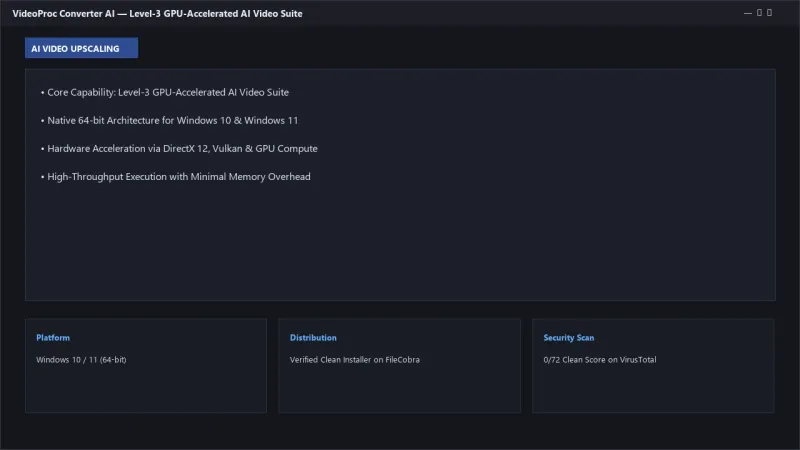
How to Install & Verify VideoProc Converter AI
Click direct download to fetch videoproc-setup.exe.
Launch VideoProc and let it detect your GPU hardware acceleration.
Select AI Video Enhancer or Video Converter to process video files.
VideoProc Converter AI Version History & Build Numbers
Every VideoProc Converter AI build FileCobra has mirrored, newest first. Match the build number against the copy you already have to confirm whether you are up to date.
- Added AI Anime video upscaling model
Frequently Asked Questions & Verification Guide
Is VideoProc Converter AI free?
Yes. VideoProc Converter AI is freeware, so it is free to download and use at no cost. It is proprietary software from Digiarty Software, Inc. rather than open source, so its source code is not publicly available.
How does Level-3 GPU Acceleration in VideoProc Converter AI work?
Level-3 acceleration offloads video decoding, processing, and encoding entirely to your GPU (NVIDIA, AMD, Intel), reducing CPU usage to under 2% during 4K transcoding.
Can VideoProc AI upscale low-resolution video to 4K?
Yes! VideoProc's Super Resolution AI model upscales vintage clips, anime, and low-res video by 200% to 400% with sharp detail restoration.
What is AI Frame Interpolation in VideoProc?
Frame Interpolation uses neural networks to generate fluid 60 FPS or 120 FPS video from standard 24 FPS footage, creating cinematic slow-motion clips.