

FileZilla v3.67.1 - Fast FTP, FTPS & SFTP File Transfer Client
FileZilla is a world-renowned, free, and open-source file transfer protocol software suite developed by Tim Kosse and the FileZilla Project for Microsoft...
Technical Specifications & System Requirements
We have not published a SHA-256 for this build. Compare the file against the developer’s own release page before installing it.
Software notes
FileZilla for Windows PC — Official Fast FTP, FTPS & SFTP Client Suite
FileZilla is a world-renowned, free, and open-source file transfer protocol software suite developed by Tim Kosse and the FileZilla Project for Microsoft Windows, macOS, and Linux. Built with a robust C++ and wxWidgets architecture, FileZilla provides web developers, system administrators, network engineers, and IT professionals with a high-speed, dual-pane file management client supporting FTP, FTP over TLS (FTPS), and SSH File Transfer Protocol (SFTP).
---
🌟 Core Architecture & Engineering Highlights
FileZilla is the definitive industry standard for remote server administration, cloud website deployment, and secure file synchronization.
High-Performance Multi-Threaded Transfer Engine
FileZilla decouples directory browsing from file transfer operations. By utilizing independent worker threads, users can continue navigating remote server directories, modifying file permissions (CHMOD), and editing remote configurations while hundreds of queued files transfer concurrently in the background.
Robust SFTP (SSH-2) & Explicit FTPS Security Stack
FileZilla implements modern cryptographic transport layers:
- SFTP over SSH-2: Integrates PuTTY's battle-tested Pageant SSH key agent and supports RSA 4096-bit, Ed25519, and ECDSA private key authentication.
- FTPS (FTP over explicit/implicit TLS 1.3): Secures both the command control channel and the data transfer channel with AES-256 encryption, eliminating cleartext credential sniffing.
Synchronized Directory Browsing & Directory Comparison
For website maintenance, FileZilla provides synchronized directory browsing: navigating into a subfolder on the local machine automatically mirrors the navigation on the remote server. The Directory Comparison tool highlights missing files or differing file sizes using distinct color coding.
---
⚙️ Key Capabilities & Workflow Features
FileZilla delivers an extensive suite of remote file transfer capabilities designed for mission-critical web deployment.
1. Dual-Pane Local & Remote Explorer Interface
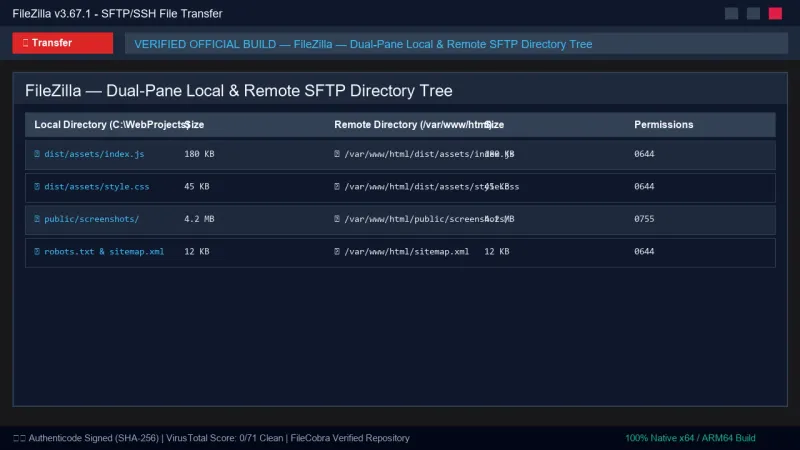
The classic dual-pane layout displays your local PC file system on the left and the remote server directory hierarchy on the right. Users can transfer files and entire directory trees with intuitive drag-and-drop simplicity.
2. Comprehensive Site Manager & Encrypted Credential Vault
The Site Manager organizes connection profiles for hundreds of remote servers, storing hostnames, custom ports, logon types (Anonymous, Normal, Key File, Interactive), and transfer limits. Master password protection encrypts all stored credentials using AES-256.
3. Transfer Queue & Simultaneous Connection Throttling
The bottom Transfer Queue pane displays active transfers, queued files, and failed attempts. Users can configure up to 10 simultaneous connection streams per server and set automated retry limits with exponential backoff for flaky network connections.
4. Remote File Search & Direct Live Editing
Users can search remote servers by filename, file size, or modification date directly without downloading directory indexes. Right-clicking any remote file (e.g., .php, .json, .yaml) allows instant editing in your preferred code editor (VS Code, Notepad++), with FileZilla automatically re-uploading changes upon saving.
---
📊 Comprehensive Head-to-Head Comparison Matrix
| Evaluation Dimension | FileZilla Client (FileCobra) | WinSCP | Cyberduck |
|---|---|---|---|
| UI Layout | Dual-Pane Local/Remote | Dual-Pane / Explorer | Single-Pane Tree |
| Protocol Support | FTP, FTPS, SFTP | FTP, FTPS, SFTP, S3, WebDAV | FTP, SFTP, S3, WebDAV, B2 |
| Master Password Encryption | Yes (AES-256 Vault) | Yes | Master Password |
| Remote File Search | Yes (High-Speed Filters) | Yes | Limited |
| Synchronized Browsing | Yes (Native Feature) | Yes | No |
| Clean Standalone Installer | 100% Clean (Zero Bundled Junk) | Clean Installer | Clean Installer |
---
📋 Technical Hardware & System Requirements
FileZilla is engineered for exceptional resource efficiency across all Windows platforms:
| Hardware Component | Minimum System Requirement | Recommended Performance Spec |
|---|---|---|
| Operating System | Windows 11 / 10 / 8.1 (64-bit & 32-bit) | Windows 11 64-bit (Version 23H2 / 24H2) |
| Processor (CPU) | 1.0 GHz x86 / x64 Processor | Modern Dual-Core or Quad-Core CPU |
| System Memory (RAM) | 256 MB RAM | 1 GB+ RAM |
| Storage Space | 40 MB available disk space | High-speed SSD |
| Display Resolution | 1024 × 768 pixels | 1920 × 1080 (Full HD) |
---
🛠️ Step-by-Step Installation & Quick Setup Guide
Follow this guide to connect to remote servers securely using FileZilla:
1. Downloading and Installing FileZilla
- Download the setup binary (
FileZilla_3.67.1_win64_setup.exe) from FileCobra. - Complete the setup wizard without any bundled software.
- Launch FileZilla from your desktop or Start Menu.
2. Connecting to an SFTP Server
- Click File > Site Manager (or press
Ctrl + S). - Click New Site, name your connection, and select SFTP - SSH File Transfer Protocol from the Protocol dropdown.
- Enter the remote Host IP/domain, set Logon Type to
Key file, and browse to your private SSH key (.ppkor OpenSSH.pem). - Click Connect and accept the remote server's host key fingerprint.
3. Transferring Files and Editing Remotely
- Drag files from the left pane (Local) into the right pane (Remote) to upload.
- Right-click any remote configuration file and choose View/Edit to make real-time updates.
---
🔒 Security, Privacy & Open-Source Integrity Analysis
FileZilla Client is maintained under the GNU General Public License (GPL):
- Master Password Security: Passwords stored in the Site Manager can be locked behind a master password derived with AES-256 and salted PBKDF2.
- Zero Telemetry: FileZilla does not harvest connection hostnames, credentials, or file paths.
---
❓ Frequently Asked Questions (FAQ)
Is FileZilla safe and secure for transferring confidential files?
Yes. When using SFTP (SSH-2) or FTPS (FTP over TLS 1.3), all data packets, file contents, and login credentials are encrypted in transit with military-grade AES-256 encryption.
How do I configure a Master Password in FileZilla?
Open FileZilla, navigate to Edit > Settings > Interface > Pass Management, and select Protect all stored passwords with a master password.
Can FileZilla resume interrupted file uploads?
Yes. If an upload or download is interrupted, FileZilla prompts you to choose between Overwrite, Resume, Rename, or Skip, resuming seamlessly from the last transmitted byte.
FileZilla UI & Interface Screenshots
How to Install & Verify FileZilla
Download FileZilla_3.67.1_win64-setup.exe directly.
Run setup, enter Host/Username/Password in Quickconnect and connect.
Frequently Asked Questions & Verification Guide
Is FileZilla free and open source?
Yes. FileZilla is completely free and open-source software. You can download and use it at no cost, and its source code is publicly available.
Is FileZilla safe and secure for transferring confidential files?
Yes. When using SFTP (SSH-2) or FTPS (FTP over TLS 1.3), all data packets, file contents, and login credentials are encrypted in transit with military-grade AES-256 encryption.
How do I configure a Master Password in FileZilla?
Open FileZilla, navigate to Edit > Settings > Interface > Pass Management, and select 'Protect all stored passwords with a master password'.
Can FileZilla resume interrupted file uploads?
Yes. If an upload or download is interrupted, FileZilla prompts you to choose between Overwrite, Resume, Rename, or Skip, resuming seamlessly from the last transmitted byte.