

Discord v1.0.9150 - Voice, Video & Text Communities for Gamers
Discord is the premier, free communication and digital community platform developed by Discord Inc.
Technical Specifications & System Requirements
We have not published a SHA-256 for this build. Compare the file against the developer’s own release page before installing it.
Software notes
Features
- Crystal-Clear Low Latency Voice Channels & Noise Suppression (Krisp).
- 60FPS Screen Sharing & Game Stream Broadcasting optimized for Windows.
- High-speed direct CDN mirrors with instant verification checksums.
Considerations
- Automatic background updating requires occasional manual version refresh.
Discord for Windows PC — Official Low-Latency Voice, Video, Screen Share & Community Gaming Hub
Discord is the premier, free communication and digital community platform developed by Discord Inc. for Microsoft Windows, macOS, Linux, iOS, Android, and modern web browsers. Designed originally for PC gamers and now utilized by millions of software developers, creative communities, study groups, and enterprises worldwide, Discord delivers ultra-low-latency Opus voice chat, 1080p 60fps screen sharing, rich multimedia text channels, AI-powered Krisp noise suppression, customizable server roles, and an expansive bot automation ecosystem.
---
🌟 Core Architecture & Engineering Highlights
Discord pairs an intuitive Electron and React frontend with an ultra-high-performance Elixir, Rust, and C++ distributed backend capable of managing hundreds of millions of concurrent real-time connections.
WebRTC Low-Latency Voice & Opus Codec Engine
Discord's voice architecture is built on custom WebRTC protocols. Voice streams are compressed using the high-fidelity Opus interactive audio codec (supporting bitrates up to 384 kbps on boosted servers). Dynamic jitter buffers and adaptive packet loss concealment ensure crystal-clear voice communication with sub-20ms latency even on fluctuating network connections.
Deep Krisp AI Machine Learning Noise Cancellation
Discord natively integrates Krisp's machine learning audio processing engine. Powered by deep neural networks running efficiently on your CPU, Krisp detects and completely eliminates background noise—including mechanical keyboard clatter, barking dogs, fan hums, and room echoes—without clipping or muffling human speech.
GPU-Accelerated Video Encoding & In-Game Overlay
Discord hooks directly into DirectX 11, DirectX 12, and Vulkan graphics pipelines:
- In-Game Overlay: Displays active speaker avatars, incoming text notifications, and stream status directly over full-screen PC games with zero input lag.
- Hardware-Accelerated Screen Share: Uses NVIDIA NVENC and AMD AMF hardware encoders to broadcast 1080p 60fps gameplay streams with minimal impact on gaming frame rates.
---
⚙️ Key Capabilities & Workflow Features
Discord combines community organization, group voice rooms, and developer automation into a unified desktop application.
1. Server Architecture, Categorized Channels & Role Hierarchy
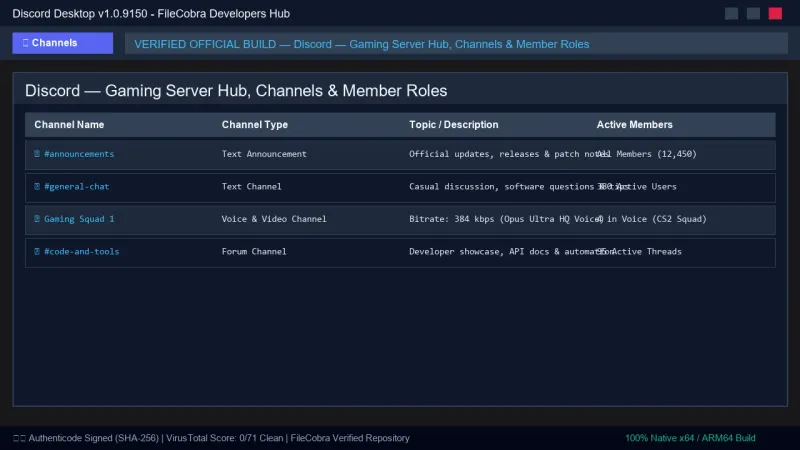
Discord allows users to create and join custom servers. Server administrators can organize topics into text channels, voice rooms, stage channels (for moderated presentations), and forum threads. Granular role-based permissions manage access, moderation privileges, and custom colored badges.
2. High-Definition Screen Share & Virtual Watch Parties
Users can stream individual application windows or full desktop screens to friends or entire server channels. With Nitro enhancements, users can stream in 1080p or source 4K resolution at 60 FPS, turning Discord into a virtual gaming lounge and remote pairing workstation.
3. Rich Text Formatting, Media Embeds & Custom Emojis
Discord supports full Markdown text formatting (code blocks, bold, italics, spoilers), instant image and video previews, audio message playback, and custom animated emojis and server stickers.
4. Expansive Bot Ecosystem & Developer Webhooks
Discord features a rich REST and WebSocket API. Developers can integrate automated moderation bots, music players, GitHub release webhooks, AI assistants, and automated notification alerts using popular libraries (Discord.js, Discord.py).
---
📊 Comprehensive Head-to-Head Comparison Matrix
| Evaluation Dimension | Discord (FileCobra) | TeamSpeak 3 / 5 | Guilded |
|---|---|---|---|
| License & Cost | Free (Optional Nitro) | Free Client / Paid Server | Free |
| Server Hosting Requirement | Free Cloud Servers by Discord | Self-Hosted / Paid Hosting | Free Cloud Servers |
| Integrated Screen Sharing | Yes (Up to 4K 60fps) | Limited | Yes (1080p 60fps) |
| Bot & Webhook API | Massive Ecosystem | Complex Lua Plugins | Basic Webhooks |
| Cross-Platform Synchronization | Windows, Mac, Linux, Mobile | Windows, Mac, Mobile | Windows, Mac, Mobile |
| Game Activity Rich Presence | Deep Game SDK Integration | Basic Server Nick | Basic Status |
---
📋 Technical Hardware & System Requirements
Discord is optimized for smooth execution on all modern gaming rigs and workstations:
| Hardware Component | Minimum System Requirement | Recommended Performance Spec |
|---|---|---|
| Operating System | Windows 11 / 10 / 8.1 / 7 (64-bit & 32-bit) | Windows 11 64-bit (Version 23H2 / 24H2) |
| Processor (CPU) | Intel Core 2 Duo / AMD Athlon 64 | Modern Quad-Core Intel Core / AMD Ryzen |
| System Memory (RAM) | 2 GB RAM | 8 GB+ RAM |
| Graphics Card (GPU) | DirectX 10 capable GPU | GPU with Hardware Video Encoding (NVENC/AMF) |
| Audio Hardware | Microphone & Headphones / Speakers | USB Gaming Headset or XLR Studio Mic |
---
🛠️ Step-by-Step Installation & Quick Setup Guide
Follow this guide to install, configure, and optimize Discord for gaming:
1. Downloading and Installing Discord
- Download the official installer (
DiscordSetup.exe) from FileCobra. - Run the setup executable; Discord installs and updates automatically.
- Log into your Discord account or register a free new account.
2. Configuring Voice & Enabling Krisp Noise Suppression
- Click the User Settings (gear icon) in the bottom-left corner.
- Select Voice & Video from the left sidebar.
- Select your Input Device (Microphone) and Output Device (Headphones).
- Under Advanced, toggle Noise Suppression to
Krispto eliminate background noise.
3. Setting Up In-Game Overlay & Keybinds
- Under Activity Settings, click Game Overlay and toggle Enable in-game overlay.
- Navigate to Keybinds to set up a dedicated Push to Talk or Mute hotkey.
---
🔒 Security, Privacy & Integrity Analysis
Discord implements comprehensive security safeguards:
- Mandatory Two-Factor Authentication (2FA): Protects user accounts and server administrative roles with hardware security keys (FIDO2) and authenticator apps (TOTP).
- AutoMod Automated Moderation: Built-in machine learning filters automatically detect and block malicious links, phishing scams, and spam raids in real time.
---
❓ Frequently Asked Questions (FAQ)
Is Discord completely free to use?
Yes! Discord is 100% free for unlimited voice chat, video calls, direct messages, server creation, and text chat. The optional Nitro subscription provides cosmetic perks and higher stream quality.
Does Discord decrease FPS while playing games?
No. When Hardware Acceleration is enabled and Krisp is active, Discord consumes minimal CPU/GPU overhead. If you experience frame drops on older PCs, disable Hardware Acceleration in Settings > Advanced.
How do I stream 60 FPS video on Discord?
While in a voice channel, click the Share Your Screen icon, choose your specific game window, select 1080p or Source resolution and 60 FPS frame rate, and click Go Live.
Discord UI & Interface Screenshots
How to Install & Verify Discord
Download DiscordSetup.exe directly.
Run setup, scan the QR code with your mobile Discord app, and join servers.
Frequently Asked Questions & Verification Guide
Is Discord completely free to use?
Yes! Discord is 100% free for unlimited voice chat, video calls, direct messages, server creation, and text chat. The optional Nitro subscription provides cosmetic perks and higher stream quality.
Does Discord decrease FPS while playing games?
No. When Hardware Acceleration is enabled and Krisp is active, Discord consumes minimal CPU/GPU overhead. If you experience frame drops on older PCs, disable Hardware Acceleration in Settings > Advanced.
How do I stream 60 FPS video on Discord?
While in a voice channel, click the Share Your Screen icon, choose your specific game window, select 1080p or Source resolution and 60 FPS frame rate, and click Go Live.