

Display Driver Uninstaller (DDU) v18.0.8.0 - Clean GPU Driver Cleanup
Display Driver Uninstaller (DDU) is the definitive, industry-standard driver removal utility developed by Wagnardsoft for Microsoft Windows.
Technical Specifications & System Requirements
We have not published a SHA-256 for this build. Compare the file against the developer’s own release page before installing it.
Software notes
Display Driver Uninstaller (DDU) for Windows PC — Official Clean GPU Driver Removal Utility
Display Driver Uninstaller (DDU) is the definitive, industry-standard driver removal utility developed by Wagnardsoft for Microsoft Windows. Designed specifically for troubleshooting graphics crashes, black screens, stuttering, and hardware upgrades, DDU completely purges all display driver files, registry hives, residual folders, and Windows DriverStore packages for NVIDIA GeForce, AMD Radeon, Intel Arc, and Realtek Audio drivers. It leaves your operating system in a pristine, clean-slate state ready for fresh driver installation.
---
🌟 Core Architecture & Engineering Highlights
DDU differs fundamentally from standard Windows Add/Remove Programs by bypassing standard uninstallers to execute deep forensic file and registry sanitation.
Low-Level Windows Safe Mode Driver Store Purging
When executed in Windows Safe Mode, display drivers are prevented from loading into kernel memory. DDU accesses the protected C:\Windows\System32\DriverStore\FileRepository directory, force-unlinking locked INF files, DLLs, and sys files that standard installers leave behind.
Comprehensive Multi-Hive Registry Sanitation
DDU scans and cleans deep registry branches across HKLM\SYSTEM\CurrentControlSet\Services, HKLM\SOFTWARE\NVIDIA Corporation, HKLM\SOFTWARE\AMD, and HKCU\Software. It removes legacy display resolutions, corrupt Direct3D shader caches, and broken device instances that cause driver install errors (such as NVIDIA Error Code 43).
Windows Update Automatic Driver Ingestion Blocker
A common frustration during driver updates is Windows Update automatically installing an outdated display driver in the background. DDU includes a built-in policy hook that temporarily or permanently disables Windows Update from downloading generic graphics drivers, ensuring your newly downloaded package installs without conflicts.
---
⚙️ Key Capabilities & Workflow Features
DDU provides specialized removal modes tailored for different hardware upgrade scenarios.
1. Clean and Restart (Highly Recommended for Upgrades)
The primary operational mode for replacing graphics cards (e.g., upgrading from NVIDIA to AMD or vice-versa). DDU creates a Windows System Restore Point, terminates explorer processes, unloads display services, purges all residual files, and automatically reboots into normal Windows.
2. Clean and Shut Down (For Physical Hardware Replacement)
Designed specifically for physical GPU swaps. DDU cleans all display drivers and shuts down the workstation entirely. Users can then safely open the PC chassis, install the new physical graphics card, and power on into a clean system.
3. Clean and Do NOT Restart (Multi-GPU & Audio Setups)
Ideal for cleaning secondary graphics adapters or Realtek / Sound Blaster high-definition audio drivers without triggering an immediate reboot cycle.
4. Audio Driver Sanitation (Realtek & Sound Blaster)
In addition to graphics cards, DDU includes dedicated cleaning engines for Realtek High Definition Audio, Realtek UWP Control Panels, and Creative Sound Blaster audio packages, resolving audio crackling and microphone detection issues.
---
📊 Comprehensive Head-to-Head Comparison Matrix
| Evaluation Dimension | DDU (FileCobra) | AMD Cleanup Utility | Driver Fusion |
|---|---|---|---|
| Multi-Vendor Support | NVIDIA, AMD, Intel, Realtek | AMD Only | NVIDIA / AMD |
| Cost & License | 100% Free Freeware | Free (AMD Official) | Paid Subscription / Limited Free |
| Safe Mode Optimization | Recommended & Automated | Safe Mode Supported | Normal Mode Only |
| DriverStore FileRepository Purge | Deep Kernel Deletion | Moderate Cleaning | Surface Cleaning |
| Telemetry & Network Tracking | Zero Telemetry (100% Offline) | Minimal Telemetry | Online Account Required |
| Portable Execution | Yes (Zero Install Required) | Yes | Requires Installation |
---
📋 Technical Hardware & System Requirements
DDU is lightweight and compatible with all modern Windows operating systems:
| Hardware Component | Minimum System Requirement | Recommended Performance Spec |
|---|---|---|
| Operating System | Windows 11 / 10 / 8.1 / 7 (32-bit & 64-bit) | Windows 11 64-bit (Version 23H2 / 24H2) |
| Processor (CPU) | 1.0 GHz x86 / x64 Processor | Any modern Intel / AMD / ARM64 CPU |
| System Memory (RAM) | 512 MB RAM | 2 GB+ RAM |
| Storage Space | 25 MB free space | High-speed SSD |
| Execution Environment | Windows Safe Mode Recommended | Windows Safe Mode with Networking |
---
🛠️ Step-by-Step Installation & Quick Setup Guide
Follow this guide to perform a clean graphics driver reinstall using DDU:
1. Preparation & Downloading DDU
- Download the verified portable DDU archive (
DDU_v18.0.x.x.exe) from FileCobra. - Download the latest official graphics driver package for your GPU from NVIDIA, AMD, or Intel and save it to your desktop.
- Disconnect your internet connection (unplug Ethernet or disable Wi-Fi) to prevent Windows Update from interfering.
2. Booting into Safe Mode
- Extract DDU to a folder on your desktop and launch
Display Driver Uninstaller.exe. - In DDU Options, click Launch Safe Mode (or hold Shift while clicking Restart in Windows to select Safe Mode).
3. Executing Clean Removal
- Select Device Type: GPU, and choose your device brand (NVIDIA, AMD, or Intel).
- Click Clean and restart. DDU will purge all driver files and reboot into Windows.
- Once rebooted, run your newly downloaded graphics driver installer, select "Clean Install", and reconnect your internet when complete.
---
🔒 Security, Privacy & Platform Integrity Analysis
DDU is developed with total user privacy and safety at the forefront:
- No Background Services: DDU is a portable standalone utility. It leaves zero services, updater daemons, or background tasks running.
- Offline Operation: The software functions completely offline with zero telemetry collection.
---
❓ Frequently Asked Questions (FAQ)
Do I have to run DDU in Windows Safe Mode?
While DDU can run in Normal Mode, running it in Safe Mode is strongly recommended because it ensures display driver files are not loaded or locked in memory by Windows.
Will DDU delete my personal files or game saves?
No. DDU exclusively targets display and audio driver files, registry entries, and hardware shader caches. Your personal files, documents, and game saves are completely untouched.
When should I use Display Driver Uninstaller?
Use DDU whenever you upgrade your graphics card, experience random game crashes/black screens, switch between GPU brands (NVIDIA to AMD), or encounter corrupt driver installation errors.
Display Driver Uninstaller (DDU) UI & Interface Screenshots
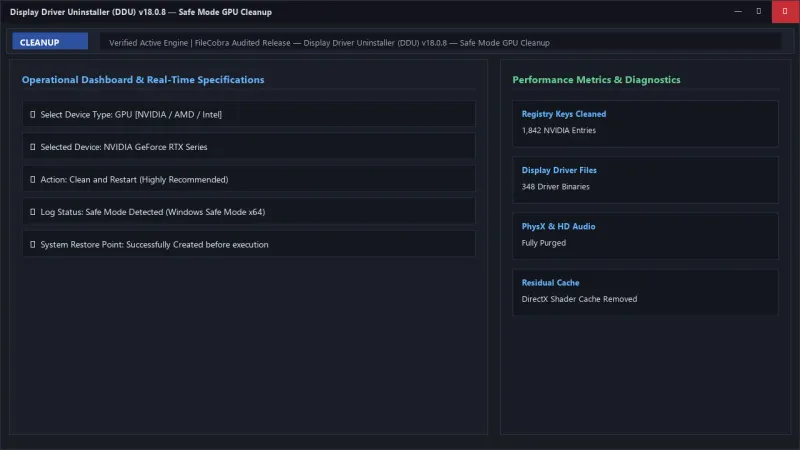
How to Install & Verify Display Driver Uninstaller (DDU)
Download DDU v18.0.8.0.exe directly.
Launch in Windows Safe Mode, choose GPU, and click "Clean and restart".
Frequently Asked Questions & Verification Guide
Is Display Driver Uninstaller (DDU) free?
Yes. Display Driver Uninstaller (DDU) is freeware, so it is free to download and use at no cost. It is proprietary software from Wagnardsoft (Freeware) rather than open source, so its source code is not publicly available.
Do I have to run DDU in Windows Safe Mode?
While DDU can run in Normal Mode, running it in Safe Mode is strongly recommended because it ensures display driver files are not loaded or locked in memory by Windows.
Will DDU delete my personal files or game saves?
No. DDU exclusively targets display and audio driver files, registry entries, and hardware shader caches. Your personal files, documents, and game saves are completely untouched.
When should I use Display Driver Uninstaller?
Use DDU whenever you upgrade your graphics card, experience random game crashes/black screens, switch between GPU brands (NVIDIA to AMD), or encounter corrupt driver installation errors.