

Download Android Studio for Windows PC v2026.2.1.8 for Windows PC
Google's official IDE for Android: IntelliJ-based editor for Kotlin and Java, visual Compose tools, a fast emulator, profilers and Gemini AI assistance —...
Technical Specifications & System Requirements
Software notes
Features
- It is the reference toolchain: the Gradle plugin, emulator, SDK Manager and Play publishing flow are all Google's own, so new Android versions and APIs work here first and most reliably.
- The Android Emulator is genuinely excellent in this generation — fast x86_64 images with hardware acceleration, foldable and Wear/TV form factors, and snapshot boot that resumes a virtual device in seconds.
- The built-in profilers (CPU, memory, network, energy) plus the App Bundle analyzer find performance problems and download-size waste that are effectively invisible from code reading alone.
- Jetpack Compose tooling — multi-device live previews, Live Edit pushing code changes to a running app, and layout inspection — makes modern declarative UI development markedly faster than the old XML workflow.
- Gemini in Android Studio is integrated rather than bolted on, offering code completion, transformation and conversational help inside the editor at no charge for individual developers.
Considerations
- The total footprint is heavy: a 1.5 GB installer, several more gigabytes of SDK downloads on first launch, and a strong preference for 16 GB of RAM and an SSD before the emulator feels responsive.
- Gradle sync and first builds remain slow on large projects, and version mismatches between Studio, the Gradle plugin and the JDK still produce the ecosystem's most common beginner errors.
- The IntelliJ platform underneath is powerful but dense, and new developers face a steep settings landscape where the fix for a build problem is often a checkbox three dialogs deep.
About & Overview: Android Studio for Windows PC
Android Studio Rabbit 1 | 2026.2.1 (build 2026.2.1.8) is Google's official integrated development environment for Android, free to use and built on IntelliJ IDEA's Community Edition. It is the complete workshop for an Android app in one window: a code editor with deep completion for Kotlin, Java and C/C++, Jetpack Compose design tools with live previews across screen sizes, a flexible Gradle-based build system, and the Android Emulator for running virtual devices (AVDs) with different Android versions, form factors and hardware profiles. Around that core sit the APK and Android App Bundle analyzer for shrinking download size, CPU/memory/network/energy profilers for finding the code that drains batteries, Logcat and the debugger for live inspection, and Gemini in Android Studio, Google's built-in AI assistant for code completion, generation and explanations. The first launch runs a Setup Wizard that downloads the separate Android SDK — platforms, build-tools and system images — several more gigabytes beyond the roughly 1.5 GB installer itself, a step new users often mistake for the whole installation. It is best for anyone building apps destined for phones, tablets, Wear OS, Android TV or Android Auto. A typical first project: create an Empty Activity Compose app, press Run, watch it compile and appear on the emulator in under a minute, then open the Profiler because the list scroll stutters — and find the recomposition loop in the code before a single user ever sees it.
In-Depth: Android Studio for Windows PC
What Android Studio actually is — Google's official Android IDE
Android Studio is the official integrated development environment for Android, built by Google on top of JetBrains' IntelliJ IDEA platform. Everything an Android developer needs ships in one install: the code editor with Kotlin and Java support, the visual Layout Editor for building screens, the Android SDK with its platform tools, the Gradle-based build system that turns code into an APK or App Bundle, and the Android Emulator for running virtual devices.
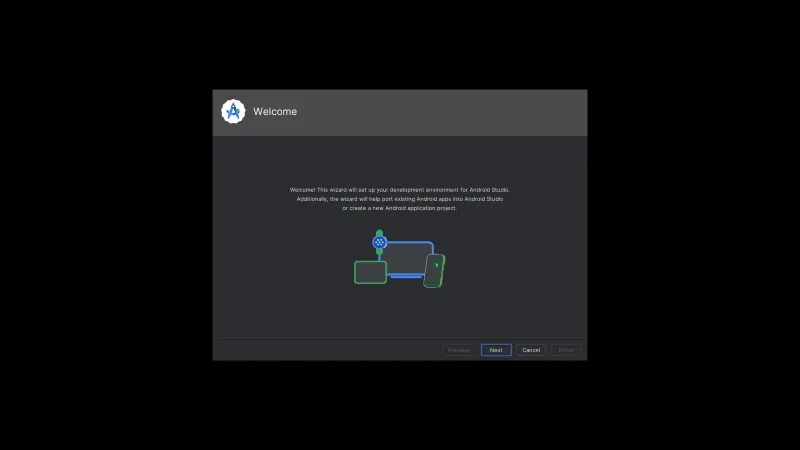
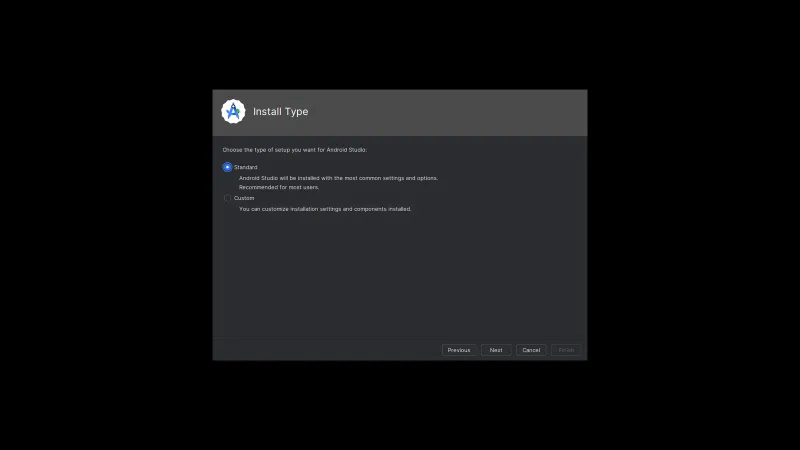
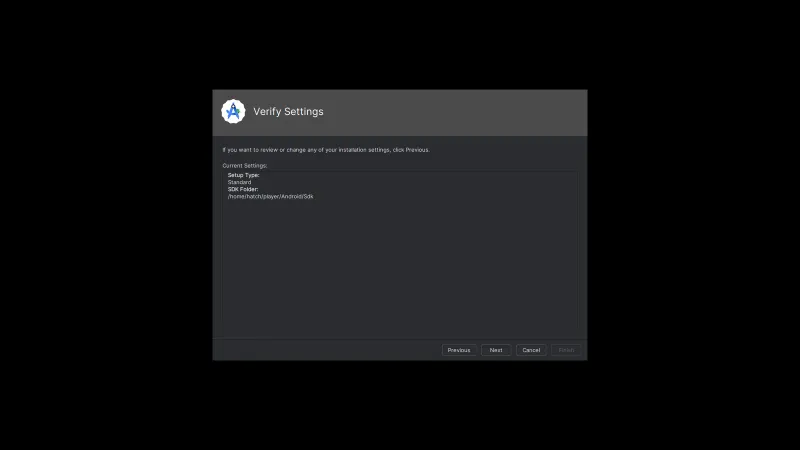
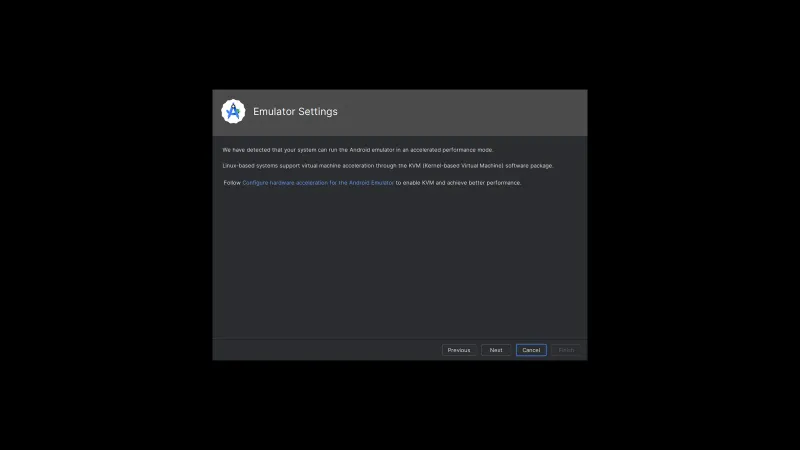
The install itself tells you a lot about the tool. The setup wizard — the screens shown in our screenshots — offers a Standard or Custom install type, verifies your settings and SDK folder location, and includes a dedicated step about emulator hardware acceleration, because a software-rendered emulator is painfully slow. A Standard install downloads several gigabytes of SDK components before you write a line of code. When it finishes, the Welcome window gives you three doors in: New Project, Open an existing one, or Clone Repository straight from version control.
Who Android Studio is for — and what it honestly costs your machine
If you are building Android apps — professionally, as a student, or for your own products — there is no real alternative: this is the toolchain Google supports, the one every tutorial assumes, and the one Play Console publishing flows are documented against. Kotlin support, Jetpack Compose tooling with live previews, the APK Analyzer, and the profiler all assume you are here.
The honest cost is weight. The official minimum of 8 GB RAM is a floor, not a comfort level: with the IDE, a Gradle daemon, and an emulator running together, 16 GB of RAM and an SSD are the realistic baseline, and each emulator image you keep eats gigabytes of disk. First project syncs download dependencies and can take a while on slow connections. It is also useless for anything that is not Android development — it is a specialist tool, and a heavy one.
A realistic first session, from wizard to running app
A typical first hour looks like this. You run the installer and take the Standard path, choosing where the SDK lives (a folder without spaces in the path saves trouble later). The wizard downloads the SDK platform, build tools, and one emulator system image. On the Welcome screen you pick New Project, choose an activity template, name the app, and wait through the first Gradle sync — the step that stalls most beginners, because it is quietly downloading half the internet of libraries.
Once the editor opens, you write code on the left, design layouts visually or in XML, and press Run. The emulator boots like a real phone — first boot is slow, later ones are fast with snapshots — and your app installs and launches on it. When a build does get stuck at steps like assembleDebug, the fix is almost always housekeeping rather than code: Build > Clean Project, stop stray Gradle daemons with gradlew --stop, and rebuild, as covered in the FAQs below.
Android Studio for Windows PC UI & Interface Screenshots
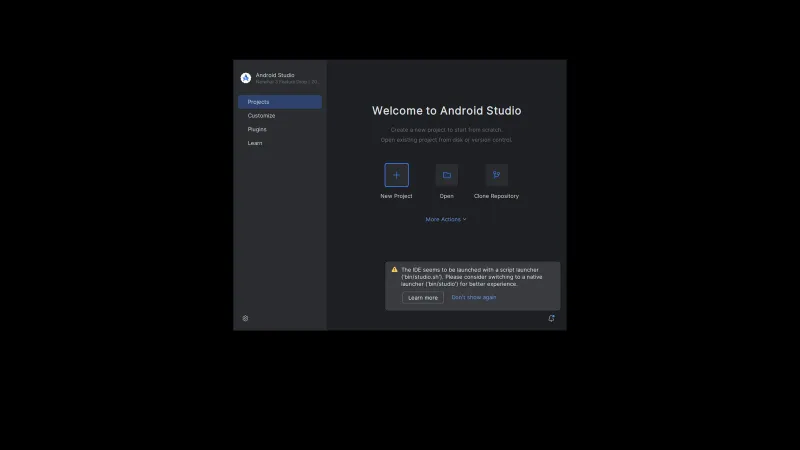
How to Install & Verify Android Studio for Windows PC
Get android-studio-rabbit1-windows.exe (2026.2.1, about 1.5 GB) from developer.android.com/studio. Google publishes the official SHA-256 for this file on the download page — 4c26f92e... for the recommended installer — so you can verify your download before installing.
Double-click the EXE and follow the wizard, keeping Android Studio and the Android Virtual Device components selected. Note the SDK install location it proposes; you will need it later for command-line tools.
Launch Android Studio and let the Setup Wizard download the Android SDK platforms, build-tools and emulator. This second download is several gigabytes and requires an internet connection — the IDE is not ready until it finishes.
Open Tools > Device Manager, create a device such as a current Pixel with a Google Play system image, and start it once to confirm hardware acceleration (WHPX) is working on your PC.
Use New Project > Empty Activity for a fresh Jetpack Compose app, wait for the first Gradle sync to complete, then press the green Run button to build and deploy to your emulator or a USB-connected phone with USB debugging enabled.
Related Windows PC Software & Alternatives





Frequently Asked Questions & Verification Guide
Is Android Studio for Windows PC free?
Yes. Android Studio for Windows PC is freeware, so it is free to download and use at no cost. It is proprietary software from Google rather than open source, so its source code is not publicly available.
What is the latest Android Studio version in 2026?
The current stable release is Android Studio Rabbit 1 | 2026.2.1 (build 2026.2.1.8), offered on developer.android.com/studio. Newer code lines exist only as preview builds — Rabbit 2 release candidates and Rabbit 3 canary builds — which install alongside the stable release for testing. For production work, stay on the stable 2026.2.1 channel and update through Help > Check for Update.
How do I fix Android Studio waiting for build to finish?
Start with Build > Clean Project followed by Build > Rebuild Project, which clears most stalled Gradle states. If it persists, use File > Invalidate Caches and restart, and stop stray Gradle daemons from a terminal with gradlew --stop so a fresh daemon starts. On Windows, also check that antivirus real-time scanning is not locking the project and SDK folders — excluding them is a common permanent fix — and confirm the PC is not simply out of RAM with the emulator running.
Why is my Android Studio build stuck at assembleDebug?
assembleDebug stalls are usually a sick Gradle daemon, a corrupted build cache, or a machine out of memory rather than a code error. Clean the project, stop the daemon (gradlew --stop), and rebuild; if it still hangs, open the Build Analyzer and Gradle console output to see which task is actually spinning. Raising the Gradle heap in gradle.properties (for example org.gradle.jvmargs=-Xmx4g) helps on memory-constrained PCs, and running the build once with the emulator closed rules out simple resource starvation.
Does updating Android Studio fix slow builds?
Often, partly: recent stable lines brought compiler and build optimisations, and staying current also keeps you on supported Gradle plugin versions. But an update will not fix a slow build whose cause is project shape or hardware. The reliable wins are enabling Gradle build caching and parallel execution in gradle.properties, keeping the project on an SSD, giving the IDE and emulator enough RAM, and profiling with the Build Analyzer to find the specific task eating the time.
How much RAM and disk space does Android Studio really need?
Officially, Windows 10/11 64-bit with 8 GB of RAM and 16 GB of free disk covers the IDE plus one emulator image — but that is a floor, not a comfort level. In practice 16 GB of RAM and an SSD make the difference between an emulator that is usable and one that is frustrating, and each additional virtual device image consumes several more gigabytes of disk. Budget roughly 20-30 GB total once the SDK, a couple of system images and project caches are in place.